

Overview
Hanko supports migrating users from Firebase while allowing them to continue signing in with their existing passwords. During migration, user accounts exported from Firebase are converted into a format that can be imported into Hanko. Password information is preserved in a way that enables Hanko to verify Firebase Scrypt password hashes during authentication, eliminating the need for users to reset their passwords after migration.How It Works
The migration consists of four steps:- Export users from Firebase
- Export your Firebase project’s password hash parameters
- Convert the exported users into Hanko import data
- Import the converted users into Hanko
Prerequisites
Before starting, make sure you have:- A Firebase project with Authentication enabled
- The Firebase CLI installed and authenticated
- Docker
- From Source
- Docker installed and running
Step 1. Export users from Firebase
In the Firebase Console select the project you want to import users from. Find your project’s ID on the top of the mainProject Overview. Export your Firebase users using the Firebase CLI’s
auth:export command:
Step 2. Export Firebase hash config
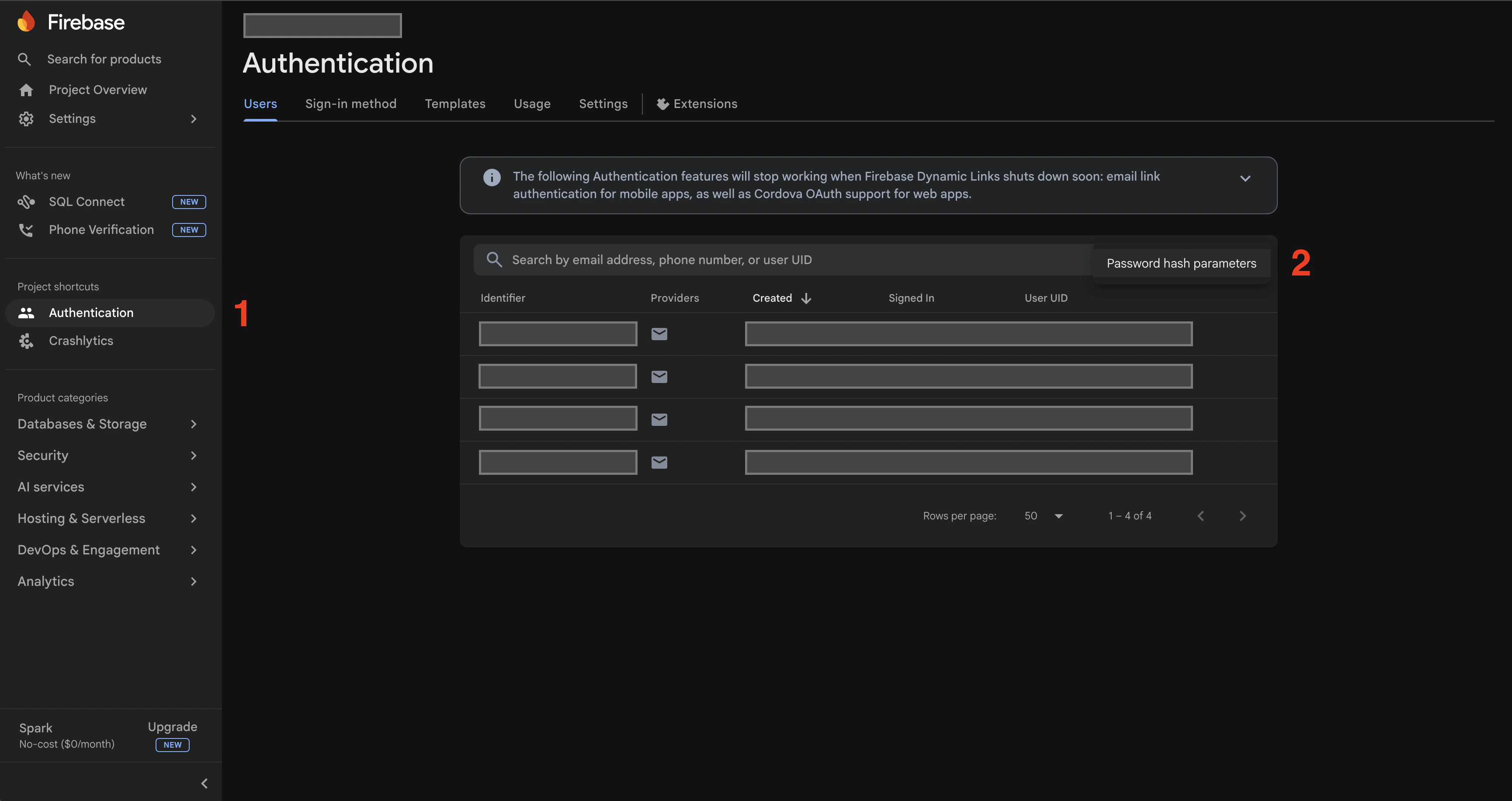
- In the Firebase console, go to the
Authenticationsection of your project. - Click the three vertical dots on the top right of the users table and select
Password hash parameters
-
Copy what looks like a JSON “object” (don’t include the
hash_configstring), and make it valid JSON:Save the file (we will refer to it ashash-config.jsonin the rest of the guide).
Step 3. Convert Firebase users
To convert your Firebase users, you can use either Docker or Go. In a directory containing the exported firebase user file and the hash config file, run:- Docker
- Go (from source)
Step 4. Import users into Hanko
Import the file (hanko-import.json) as described in
Import users.
Caveats
File size limits
Firebase does not provide a fixed limit for the size of user export files, and export size depends on the number of users in the project. Hanko supports importing user files up to ~50 MB in size. If the converted import file exceeds this limit, it must be split into smaller chunks before importing. The conversion utility does not automatically split or paginate output files.Troubleshooting
Conversion failures
Failed conversions are written to a Dead Letter Queue (DLQ) file (defaultfirebase-dlq.jsonl).
Each line contains:
- The error reason
- The original Firebase user record
Authentication fails after migration
Check:- Correct Firebase hash config was used
- User exists in
hanko-import.json - User is not present in
firebase-dlq.jsonl