> ## Documentation Index
> Fetch the complete documentation index at: https://docs.hanko.io/llms.txt
> Use this file to discover all available pages before exploring further.
# Integrate Hanko with SvelteKit
> Learn how to quickly add authentication and user profile in your SvelteKit app using Hanko.
**Hanko Fullstack Integration Guide**:
**About Hanko**:
Hanko is a modern open source authentication solution and the fastest way you integrate passkeys, 2FA, SSO, and more—with full control over your data. Move between self-hosted and Hanko Cloud anytime. No lock-in. Just Auth how it should be: secure, user friendly, and fully yours.
**What This Guide Covers**: This comprehensive guide demonstrates integrating Hanko authentication into your fullstack application using the `@teamhanko/hanko-elements` package. You'll learn to set up authentication components, implement session management, secure routes with middleware, and handle user data across both client and server-side contexts.
**Key Technologies**:
* Modern fullstack framework with TypeScript,
* Server-side rendering capabilities
* Hanko Elements
* Hanko Cloud Console
* Session management
* Middleware protection
**Prerequisites**:
* Node.js installed on your system
* Basic knowledge of your chosen fullstack framework
* A Hanko Cloud account (sign up at [https://cloud.hanko.io/signup](https://cloud.hanko.io/signup))
**Integration Tasks You'll Complete**:
* Install and configure Hanko Elements package for your framework
* Set up HankoAuth component with session event handling and navigation
* Create HankoProfile component for user credential management
* Implement logout functionality with proper session cleanup and redirects
* Secure routes using framework-specific middleware with session validation
* Retrieve user data both client-side and server-side using appropriate APIs
* Handle authentication redirects, error states, and edge cases
* Configure server-side rendering integration and hydration
* Customize component appearance and behavior for your application
## Create a SvelteKit application
Create a new SvelteKit application using the official SvelteKit starter.
Run the following command to [create a new SvelteKit application](https://svelte.dev/docs/kit/creating-a-project):
```bash terminal theme={null}
npx sv create project-name
```
## Install `@teamhanko/hanko-elements`
The Hanko Elements package provides pre-built authentication components (`hanko-auth`, `hanko-profile`) that work with Svelte's reactive system.
Install the package:
```bash npm theme={null}
cd project-name
npm install @teamhanko/hanko-elements
```
```bash pnpm theme={null}
cd project-name
pnpm add @teamhanko/hanko-elements
```
```bash bun theme={null}
cd project-name
bun add @teamhanko/hanko-elements
```
```bash yarn theme={null}
cd project-name
yarn add @teamhanko/hanko-elements
```
## Set up your Hanko project
Create a Hanko project in the Cloud Console to get your API URL.
Go to the [Hanko Console](https://cloud.hanko.io/) and [create a project for this application.](/setup-hanko-cloud)
Set the `APP URL` to your development URL (typically [http://localhost:5173/](http://localhost:5173/) for SvelteKit).
## Add your Hanko API URL
Add your Hanko API URL to your environment file. The `PUBLIC_` prefix makes it accessible in both server and client-side code in SvelteKit.
Retrieve your API URL from the [Hanko Console](https://cloud.hanko.io/) and add it to your `.env` file:
```sh .env theme={null}
PUBLIC_HANKO_API_URL=https://f4****-4802-49ad-8e0b-3d3****ab32.hanko.io
```
If you are self-hosting you need to provide the URL of your running Hanko backend.
## Create Hanko components
Create a `components` folder with two files: `HankoAuth.svelte` and `HankoProfile.svelte`.
### Hanko Auth
Now let's setup the `HankoAuth.tsx` file to create a functioning login page.
Here we subscribe to the `onSessionCreated` [event](/guides/hanko-elements/using-frontend-sdk#events), this triggers when a user successfully logs in. You can use these event to perform any desired action.(e.g. redirect to your dashboard).
For more information please refer to the [Auth component page.](/guides/hanko-elements/auth-component)
Svelte authentication component that uses reactive stores, handles session events, and implements navigation to dashboard after successful login
```jsx components/HankoAuth.svelte theme={null}
```
Now simply import the component you just created into any page.
Main page route that imports and renders the HankoAuth component for user login and registration
```jsx routes/+page.svelte theme={null}
```
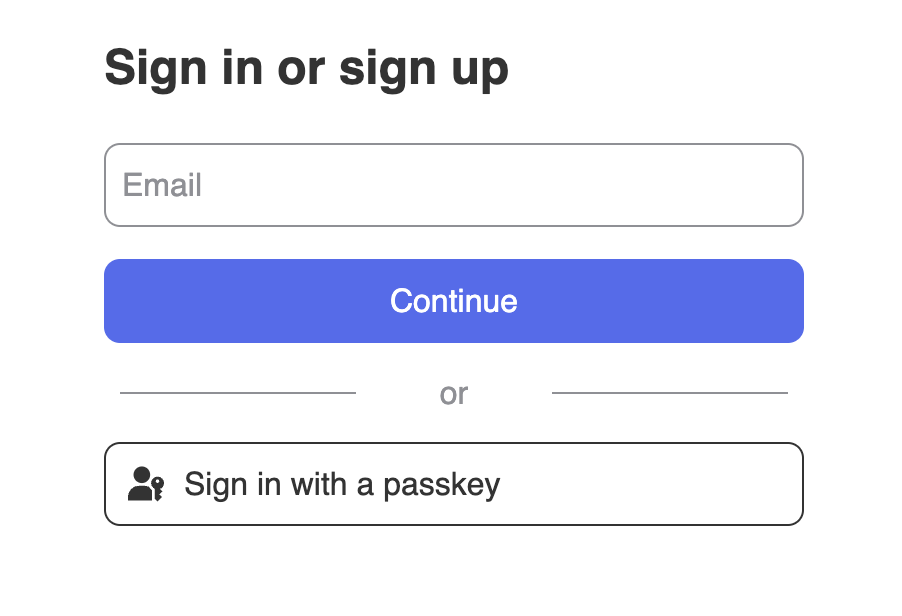
By now, your sign-up and sign-in features should be working. You should see an interface similar to this 👇
### Hanko Profile
After setting up the HankoAuth let's set up the `HankoProfile.jsx` file to create an interface where users can
manage their `Email Addresses` and credentials.
For more information please refer to the [Profile component page.](/guides/hanko-elements/profile-component)
Svelte profile component that allows users to manage their email addresses, passkeys, and authentication credentials using Hanko's built-in interface
```jsx components/HankoProfile.svelte theme={null}
```
Now simply import the component you just created into any page.
Protected dashboard page route that imports and displays the HankoProfile component for user account management
```jsx routes/dashboard/+page.svelte theme={null}
```
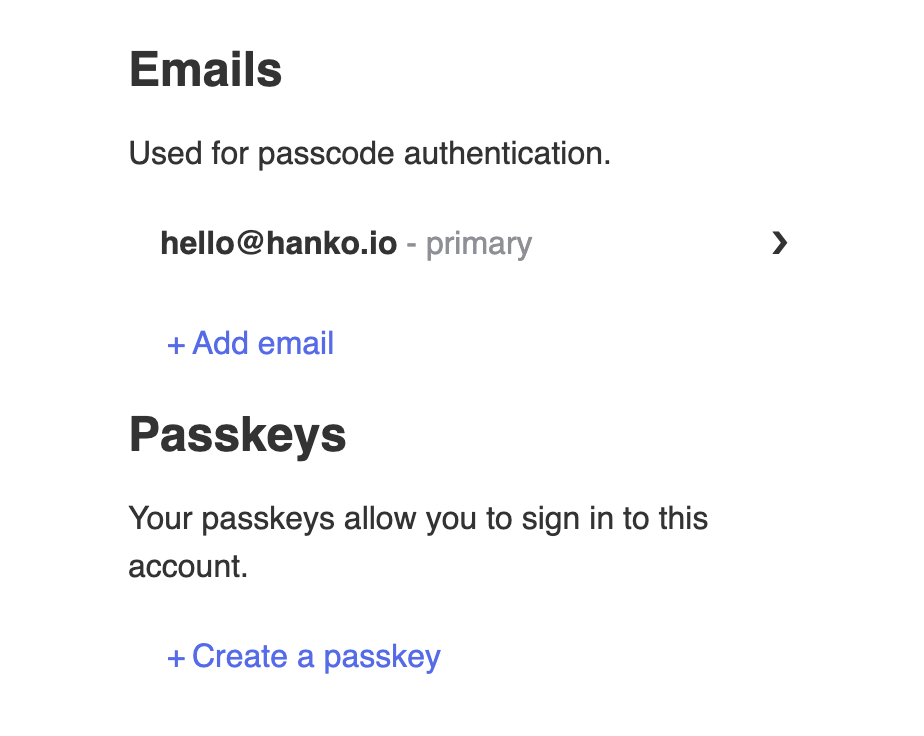
It should look something like this 👇
## Implement logout functionality
You can use `@teamhanko/hanko-elements` to easily logout users. Here we will make a logout button.
Create `LogoutButton.tsx` and insert the code below.
Svelte logout button component that terminates the user session and navigates back to the home page
```jsx components/LogoutButton.svelte theme={null}
```
## Customize component styles
You can customize the appearance of `hanko-auth` and `hanko-profile` components using CSS variables and parts. Refer to our [customization guide](/guides/hanko-elements/customize-appearance).
## Securing routes
To verify the session token in your SvelteKit application, we're using the [session/validate API request](/api-reference/public/session-management/validate-a-session). By checking for a valid session token this middleware will ensure secure access to specific routes, like `/dashboard` and `/protected`.\
The middleware hook extracts and verifies the session token, and redirect unauthorized users back to the home or login page.
For more info on middlewares / hooks in SvelteKit and where to put the `hooks.server.ts` file,\
please refer to [SvelteKit Hooks](https://svelte.dev/docs/kit/hooks).
What happens here is that during each request the handle function will be called.
It then verifies the session token and redirects the user back if he is on a private route and the session token is not valid.
Hooks like these tends to not always work after creating it, if this is the case try restarting your SvelteKit app.
SvelteKit server hooks that implement route protection by validating session tokens and redirecting unauthorized users away from protected routes
```tsx hooks.server.ts theme={null}
import { type RequestEvent, redirect, type Handle } from "@sveltejs/kit";
import { env } from "$env/dynamic/public";
const hankoApiUrl = env.PUBLIC_HANKO_API_URL;
export const handle: Handle = async ({ event, resolve }) => {
const verified = await authenticatedUser(event);
if (event.url.pathname.startsWith("/dashboard") && !verified) {
throw redirect(303, "/");
}
if (event.url.pathname.startsWith("/profile") && !verified) {
throw redirect(303, "/");
}
const response = await resolve(event);
return response;
};
const authenticatedUser = async (event: RequestEvent) => {
const { cookies } = event;
const cookieToken = cookies.get("hanko");
const validationOptions = {
method: 'POST',
headers: {'Content-Type': 'application/json'},
body: `{"session_token":"${cookieToken}"}`
}
try {
const response = await fetch(hankoApiUrl + '/sessions/validate', validationOptions);
if (!response.ok) throw new Error('Session validation failed');
const verifiedResponse = await response.json();
console.log(verifiedResponse)
return verifiedResponse.is_valid;
} catch (error) {
console.log(error)
return false;
}
};
```
## Getting user data
Let's use the Hanko SDK to get user data.
Let's update the `dashboard` page to display some of the information from the user.
Enhanced dashboard page that retrieves and displays user data (email and ID) using the Hanko SDK alongside the profile management component
```jsx routes/dashboard/+page.svelte theme={null}
{email}
{id}
```
## Try out yourself
}
>
Full source code available on our GitHub
 ### Hanko Profile
After setting up the HankoAuth let's set up the `HankoProfile.jsx` file to create an interface where users can
manage their `Email Addresses` and credentials.
For more information please refer to the [Profile component page.](/guides/hanko-elements/profile-component)
### Hanko Profile
After setting up the HankoAuth let's set up the `HankoProfile.jsx` file to create an interface where users can
manage their `Email Addresses` and credentials.
For more information please refer to the [Profile component page.](/guides/hanko-elements/profile-component)
 ## Implement logout functionality
You can use `@teamhanko/hanko-elements` to easily logout users. Here we will make a logout button.
Create `LogoutButton.tsx` and insert the code below.
## Implement logout functionality
You can use `@teamhanko/hanko-elements` to easily logout users. Here we will make a logout button.
Create `LogoutButton.tsx` and insert the code below.