> ## Documentation Index
> Fetch the complete documentation index at: https://docs.hanko.io/llms.txt
> Use this file to discover all available pages before exploring further.
# Integrate Hanko with JavaScript
> Learn how to quickly add authentication and user profile in your vanilla Javascript app using Hanko.
**Hanko Frontend Integration Guide**:
**About Hanko**:
Hanko is a modern open source authentication solution and the fastest way you integrate passkeys, 2FA, SSO, and more—with full control over your data. Move between self-hosted and Hanko Cloud anytime. No lock-in. Just Auth how it should be: secure, user friendly, and fully yours.
**What This Guide Covers**: This guide demonstrates how to integrate Hanko authentication into your frontend application. You'll implement user authentication, profile management, route protection, and logout functionality with Hanko Elements web components.
**Key Technologies**:
* Modern frontend framework with TypeScript support
* Build tools and development environment
* Client-side routing and navigation
* Hanko Elements web components
* Hanko SDK for authentication logic
**Prerequisites**:
* Node.js installed on your system
* Basic knowledge of your chosen frontend framework
* A Hanko Cloud account (sign up at cloud.hanko.io)
**Integration Tasks You'll Complete**:
* Set up your frontend application with the appropriate build tools
* Install and configure Hanko Elements
* Create a Hanko project in the cloud console
* Implement authentication components (HankoAuth, HankoProfile)
* Set up routing and navigation
* Add logout functionality
* Implement protected routes with session validation
* Retrieve and display user data
* Customize component styling and behavior
## Add the Hanko API URL
Retrieve the API URL from the [Hanko Console](https://cloud.hanko.io/) and place it in your `.env` file.
```sh .env theme={null}
HANKO_API_URL=https://f4****-4802-49ad-8e0b-3d3****ab32.hanko.io
```
If you are self-hosting, you need to provide the URL of your running Hanko
backend.
## Add `` component
Add the `` web component to create a login interface. Import the `register` function from `@teamhanko/hanko-elements` and call it with your Hanko API URL to register the component with the browser's [CustomElementRegistry](https://developer.mozilla.org/de/docs/Web/API/CustomElementRegistry).
```html login.html theme={null}
```
## Define event callbacks
Use the Hanko client to listen for specific [events](https://github.com/teamhanko/hanko/blob/main/frontend/elements/README.md#events) such as user logins.
```html login.html theme={null}
```
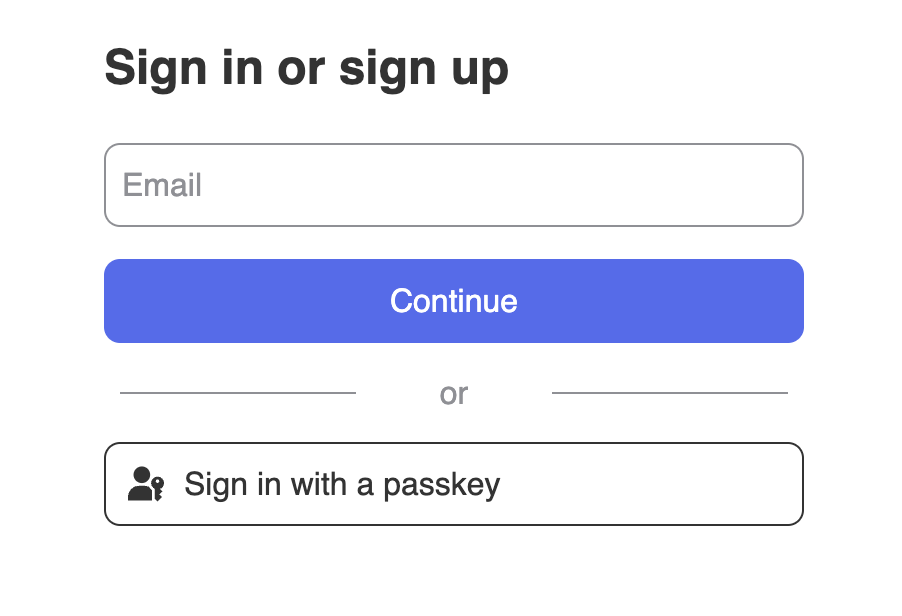
By now, your sign-up and sign-in features should be working. You should see an interface similar to this 👇
## Add ``
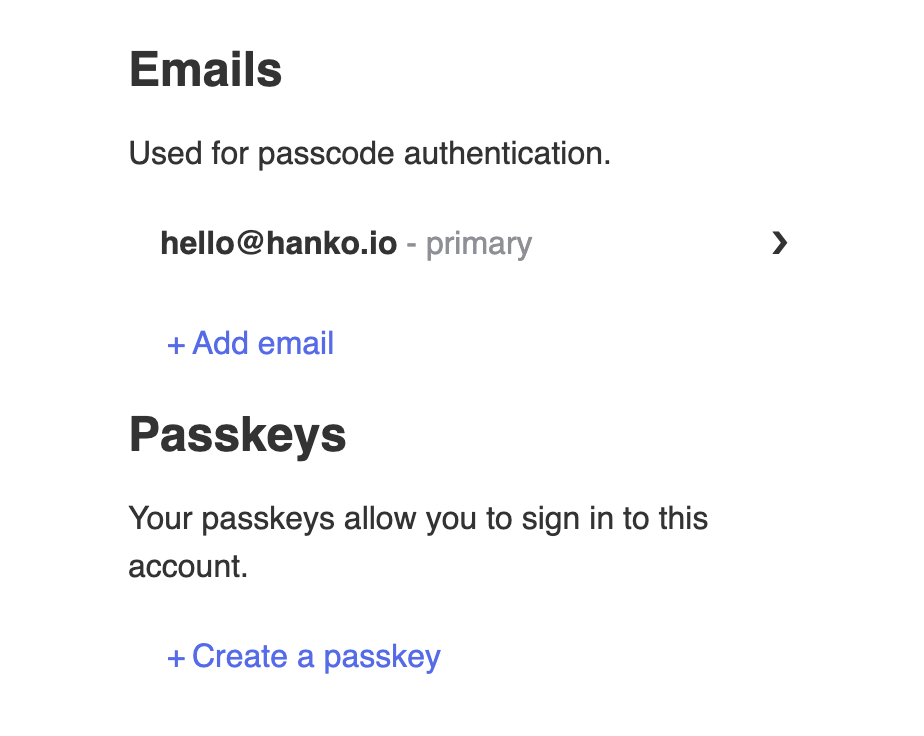
The `` component provides an interface, where users can manage their email addresses and passkeys.
```html profile.html theme={null}
```
It should look like this 👇
## Implement logout functionality
Implement logout functionality using the Hanko client. A custom event is dispatched on logout that you can subscribe to:
```html profile.html theme={null}
```
## Customize component styles
The styles of the `hanko-auth` and `hanko-profile` elements can be customized using CSS variables and parts. See our
guide on customization [here](/guides/hanko-elements/customize-appearance).
## Authenticate backend requests
To authenticate requests on your backend with Hanko, refer to our [backend guide](/quickstarts/backend).
 ## Add `
 ## Implement logout functionality
Implement logout functionality using the Hanko client. A custom event is dispatched on logout that you can subscribe to:
```html profile.html theme={null}
## Implement logout functionality
Implement logout functionality using the Hanko client. A custom event is dispatched on logout that you can subscribe to:
```html profile.html theme={null}