> ## Documentation Index
> Fetch the complete documentation index at: https://docs.hanko.io/llms.txt
> Use this file to discover all available pages before exploring further.
# Integrate Hanko with Angular
> Learn how to quickly add authentication and user profile in your Angular app using Hanko.
**Hanko Frontend Integration Guide**:
**About Hanko**:
Hanko is a modern open source authentication solution and the fastest way you integrate passkeys, 2FA, SSO, and more—with full control over your data. Move between self-hosted and Hanko Cloud anytime. No lock-in. Just Auth how it should be: secure, user friendly, and fully yours.
**What This Guide Covers**: This guide demonstrates how to integrate Hanko authentication into your frontend application. You'll implement user authentication, profile management, route protection, and logout functionality with Hanko Elements web components.
**Key Technologies**:
* Modern frontend framework with TypeScript support
* Build tools and development environment
* Client-side routing and navigation
* Hanko Elements web components
* Hanko SDK for authentication logic
**Prerequisites**:
* Node.js installed on your system
* Basic knowledge of your chosen frontend framework
* A Hanko Cloud account (sign up at cloud.hanko.io)
**Integration Tasks You'll Complete**:
* Set up your frontend application with the appropriate build tools
* Install and configure Hanko Elements
* Create a Hanko project in the cloud console
* Implement authentication components (HankoAuth, HankoProfile)
* Set up routing and navigation
* Add logout functionality
* Implement protected routes with session validation
* Retrieve and display user data
* Customize component styling and behavior
## Create an Angular application
Run the following command to [create a new Angular application](https://v17.angular.io/tutorial/tour-of-heroes/toh-pt0):
```bash npm theme={null}
npm install -g @angular/cli
ng new project-name --style=css --routing --standalone --defaults
```
```bash pnpm theme={null}
pnpm install -g @angular/cli
ng new project-name --style=css --routing --standalone --defaults
```
```bash bun theme={null}
bun install -g @angular/cli
ng new project-name --style=css --routing --standalone --defaults
```
```bash yarn theme={null}
yarn global add @angular/cli
ng new project-name --style=css --routing --standalone --defaults
```
This quickstarts examples are based on the Server Routing and App Engine APIs.
Make sure while creating your angular project you accept (press 'y') the routing and App Engine.
## Install `@teamhanko/hanko-elements`
Install `hanko-elements` to access the pre-built `hanko-auth` and `hanko-profile` components.
```bash npm theme={null}
cd project-name
npm install @teamhanko/hanko-elements
```
```bash pnpm theme={null}
cd project-name
pnpm add @teamhanko/hanko-elements
```
```bash bun theme={null}
cd project-name
bun add @teamhanko/hanko-elements
```
```bash yarn theme={null}
cd project-name
yarn add @teamhanko/hanko-elements
```
## Set up Hanko project
Go to the [Hanko Console](https://cloud.hanko.io/) and [create a project for this application.](/setup-hanko-cloud)
During creation make sure to input the URL you will be developing on as the `APP URL`.
(Most likely [http://localhost:4200/](http://localhost:4200/))
## Set up environments Variables
Create a new file `environments.ts` within your `/src` folder.
Retrieve your API URL from the [Hanko Console](https://cloud.hanko.io/) and place it in your .env file.
```ts environments.ts theme={null}
export const environment = {
production: false,
HANKO_API_URL: 'YOUR_HANKO_URL',
};
```
If you are self-hosting you need to provide the URL of your Hanko backend.
## Create Hanko components
Create the `HankoAuth` and `HankoProfile` components by running these commands:
```bash theme={null}
ng generate component HankoAuth --standalone
ng generate component HankoProfile --standalone
```
Also generate two pages with these commands, we will add the components in here.
```bash theme={null}
ng generate component Home --standalone --type=page
ng generate component Dashboard --standalone --type=page
```
### Hanko Auth
Set up the `HankoAuth` component:
For more information please refer to the [Auth component page.](/guides/hanko-elements/auth-component)
```html theme={null}
```
```ts theme={null}
//CUSTOM_ELEMENTS_SCHEMA lets you use the Hanko Elements
import { Component, CUSTOM_ELEMENTS_SCHEMA } from '@angular/core';
import { Router } from '@angular/router';
//function to register hanko element
import { register } from "@teamhanko/hanko-elements";
import { environment } from '../../environments';
@Component({
//Selector you will use in the pages html files
selector: 'app-hanko-auth',
imports: [],
templateUrl: './hanko-auth.component.html',
styleUrl: './hanko-auth.component.css',
schemas: [CUSTOM_ELEMENTS_SCHEMA],
})
export class HankoAuthComponent {
hankoApi = environment.HANKO_API_URL;
constructor(private router: Router) {
register(this.hankoApi).catch((error) => {
// handle error
});
}
redirectAfterLogin() {
//Succesfully logged in, redirect to any path you want.
this.router.navigate(['/dashboard']);
}
}
```
Now Import the HankoAuth component into the home page you previously made.
```html theme={null}
```
```ts theme={null}
import { Component } from '@angular/core';
import { HankoAuthComponent } from '../hanko-auth/hanko-auth.component';
@Component({
selector: 'app-home',
imports: [HankoAuthComponent],//Import the component into your page
templateUrl: './home.page.html',
styleUrl: './home.page.css'
})
export class HomePage {
}
```
### Hanko Profile
Set up the `HankoProfile` component to create an interface where users can manage their email addresses and credentials.
For more information please refer to the [Profile component page.](/guides/hanko-elements/profile-component)
```html theme={null}
```
```ts theme={null}
//CUSTOM_ELEMENTS_SCHEMA lets you use the Hanko Elements
import { Component , CUSTOM_ELEMENTS_SCHEMA} from '@angular/core';
//function to register hanko element
import { register } from '@teamhanko/hanko-elements';
import { environment } from '../../environments';
@Component({
//Selector you will use in the pages html files
selector: 'app-hanko-profile',
imports: [],
templateUrl: './hanko-profile.component.html',
styleUrl: './hanko-profile.component.css',
schemas: [CUSTOM_ELEMENTS_SCHEMA]
})
export class HankoProfileComponent {
hankoApi = environment.HANKO_API_URL;
constructor() {
register(this.hankoApi).catch((error) => {
// handle error
});
}
}
```
Now Import the HankoAuth component into the dashboard page you previously made.
```html theme={null}
```
```ts theme={null}
import { Component } from '@angular/core';
import { HankoProfileComponent } from '../hanko-profile/hanko-profile.component';
@Component({
selector: 'app-dashboard',
imports: [HankoProfileComponent],//Import the component into your page
templateUrl: './dashboard.page.html',
styleUrl: './dashboard.page.css'
})
export class DashboardPage {
}
```
### Setting up routes
Remove everything in the `app.component.html` file and add a router outlet.
```html app.component.html theme={null}
```
Now inport both pages into the `app.routes.ts` file and setup your routes.
```ts app.routes.ts theme={null}
import { Routes } from '@angular/router';
import { HomePage } from './home/home.page';
import { DashboardPage } from './dashboard/dashboard.page';
export const routes: Routes = [
{
path: '',
component: HomePage,
},
{
path: 'dashboard',
component: DashboardPage,
},
];
```
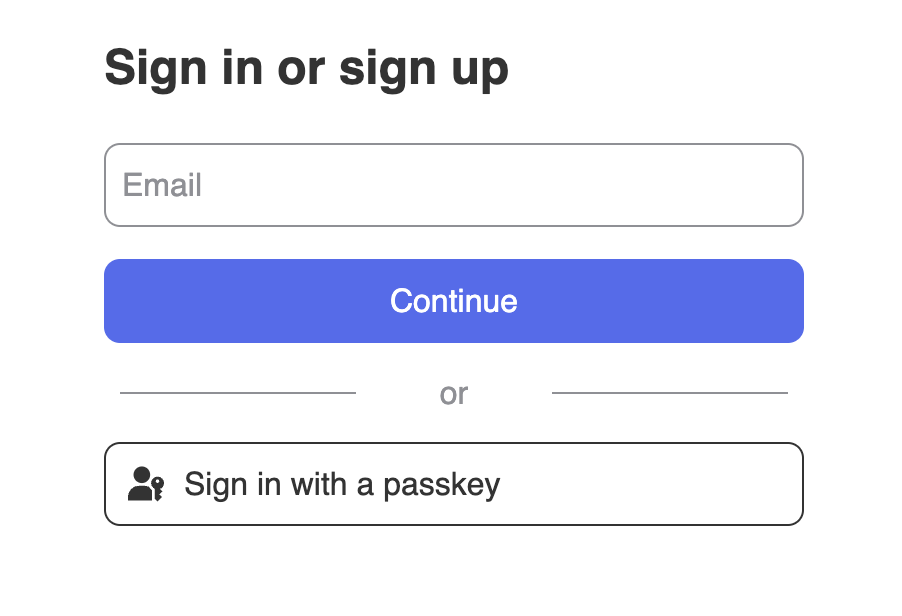
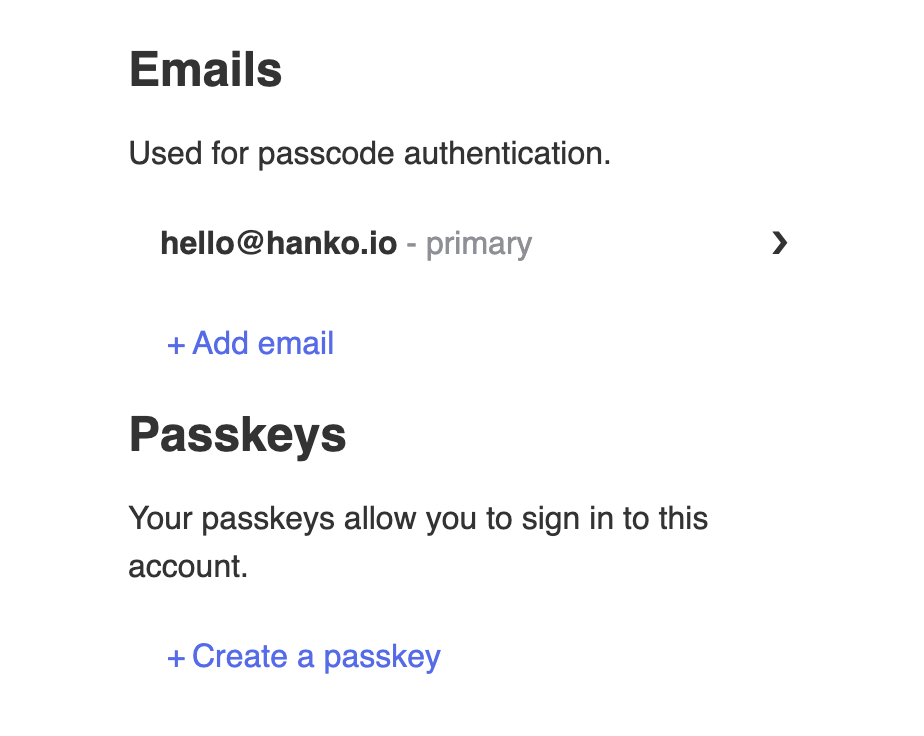
By now you should be able to go to `/` to see the ``, and to `/dashboard` to see the ``.
They should look something like this👇
Use the command `ng serve` to start the server.
## Implement logout functionality
You can use `@teamhanko/hanko-elements` to easily log users out. Here we will make a logout button component that you can use anywhere.
Create the LogoutButton component with this command.
```bash theme={null}
ng generate component LogoutButton --standalone
```
Now let's set up the LogoutButton component.
```html theme={null}
```
```ts theme={null}
import { Component } from '@angular/core';
import { Router } from '@angular/router';
import { Hanko } from '@teamhanko/hanko-elements';
import { environment } from '../../environments';
@Component({
selector: 'app-logout-button',
imports: [],
templateUrl: './logout-button.component.html',
styleUrl: './logout-button.component.css'
})
export class LogoutButtonComponent {
hankoApi = environment.HANKO_API_URL;
constructor(private router: Router){};
logout(){
new Hanko(this.hankoApi).logout().catch((error) => {
console.log(error);
}).then(()=>{
//Url to navigate to once logged out
this.router.navigate(["/"]);
});
}
}
```
Let's import this into our dashboard page.
```html theme={null}
```
```ts theme={null}
import { Component } from '@angular/core';
import { HankoProfileComponent } from '../hanko-profile/hanko-profile.component';
import { LogoutButtonComponent } from '../logout-button/logout-button.component';
@Component({
selector: 'app-dashboard',
imports: [
HankoProfileComponent,
LogoutButtonComponent//add the logout button
],
templateUrl: './dashboard.page.html',
styleUrl: './dashboard.page.css'
})
export class DashboardPage {
}
```
## Customize component styles
You can customize the appearance of `hanko-auth` and `hanko-profile` components using CSS variables and parts. Refer to our [customization guide](/guides/hanko-elements/customize-appearance).
## Securing routes
To secure our routes we should validate the session token at the backend. Please refer to our [backend guides](/quickstarts/backend).
Let's setup a `guard` that will check for authentication before the router activates the pages.
Create the authentication guard with this command.
```bash theme={null}
ng generate guard auth --implements CanActivate
```
Then in `auth.guard.ts`, insert this code.
This will grab the hanko session token and send it to the backend for validation.
```ts theme={null}
import { inject } from '@angular/core';
import { CanActivateFn, Router } from '@angular/router';
export const authGuard: CanActivateFn = async (route, state) => {
const router = inject(Router);
const backendUrl = "http://localhost:5001";//change this to the url of your running hanko backend
const sessionToken = isBrowser() ? getCookie('hanko') : null;
if (!sessionToken) throw new Error('No session token found.');
try {
const response = await fetch(`${backendUrl}/validate`, {
credentials: "include",
});
if (!response.ok) throw new Error('Session validation failed');
return true;
} catch (error) {
console.error('AuthGuard error:', error);
return router.parseUrl('/');// url to return the user to if they are not authenticated
}
};
function getCookie(name: string): string | null {
if (typeof document === 'undefined') return null;
const match = document.cookie.match(new RegExp(`(^| )${name}=([^;]+)`));
return match ? match[2] : null;
}
function isBrowser(): boolean {
return typeof window !== 'undefined' && typeof document !== 'undefined';
}
```
Add this authentication guard to the routes, in the `app.routes.ts`, which should only be accessible when the user is logged in.
```ts app.routes.ts theme={null}
import { Routes } from '@angular/router';
import { HomePage } from './home/home.page';
import { DashboardPage } from './dashboard/dashboard.page';
//Import the auth guard
import { authGuard } from './auth.guard';
export const routes: Routes = [
{
path: '',
component: HomePage,
},
{
path: 'dashboard',
component: DashboardPage,
canActivate: [authGuard]//secure the /dashboard path with the guard
},
];
```
To verify that it works, logout on your app and go to /dashboard, you should get redirected back!
## Getting user data
Let's use the Hanko SDK to get user data to display on our dashboard page.
For the user information we will use [hanko.GetUser()](https://teamhanko.github.io/hanko/jsdoc/hanko-frontend-sdk/index.html#getting-the-user-object)
Lets update our dashboard page.
```html theme={null}
Email: {{email}}
Id: {{id}}
```
```ts theme={null}
import { Component } from '@angular/core';
import { HankoProfileComponent } from '../hanko-profile/hanko-profile.component';
import { LogoutButtonComponent } from '../logout-button/logout-button.component';
import { Hanko } from '@teamhanko/hanko-elements';
import { environment } from '../../environments';
@Component({
selector: 'app-dashboard',
imports: [
HankoProfileComponent,
LogoutButtonComponent//add the logout button
],
templateUrl: './dashboard.page.html',
styleUrl: './dashboard.page.css'
})
export class DashboardPage {
hankoApi = environment.HANKO_API_URL;
email : string = '';
id : string = '';
ngOnInit(): void {
const hanko = new Hanko(this.hankoApi);
//Get user to get the user information
hanko.getUser().then((user: any) => {
this.email = user.emails?.[0]?.address || 'Unknown';
this.id = user.user_id || 'Unknown';
}).catch(err => console.error('Failed to fetch user', err));
}
}
```
## Try it yourself
}
>
It uses Express.js for the backend, full source code available on our GitHub.