> ## Documentation Index
> Fetch the complete documentation index at: https://docs.hanko.io/llms.txt
> Use this file to discover all available pages before exploring further.
# Using Hanko with Supabase
> This guide showcases how to add new user info, like user ID and email to the Supabase database, when users sign up with Hanko. Jump to [Nextjs guide](/quickstarts/fullstack/next) to learn how to add Hanko Auth in your Next App.
# Hanko Supabase Integration Guide
**About Hanko**:
Hanko is a modern open source authentication solution and the fastest way you integrate passkeys, 2FA, SSO, and more—with full control over your data. Move between self-hosted and Hanko Cloud anytime. No lock-in. Just Auth how it should be: secure, user friendly, and fully yours.
**What This Guide Covers**: This guide demonstrates how to integrate Hanko authentication with Supabase database. You'll learn to automatically sync user data between Hanko and Supabase, creating user profiles and managing authentication state across both platforms.
**Key Technologies**:
* Hanko Elements (Authentication)
* Supabase (Database & Backend)
* Next.js (React Framework)
* TypeScript
* Supabase JavaScript Client
* Database Schema Design
**Prerequisites**:
* Basic knowledge of React/Next.js
* Understanding of database concepts
* Node.js development environment
* Active Hanko project configured
* Supabase account and project
**Tasks You'll Complete**:
1. Set up Supabase project and database
2. Create users table with proper schema
3. Configure Supabase client in your application
4. Build API endpoint for user synchronization
5. Integrate user sync with Hanko authentication
6. Test user creation and data flow
This guide uses Next.js, but you can apply the same concepts to other frameworks or languages. We're expanding our framework examples, so stay tuned for more!
Sign up for a [Supabase](https://supabase.com/) account if you don't have one already.
From the Supabase dashboard, click 'New Project' to create a project for your application.
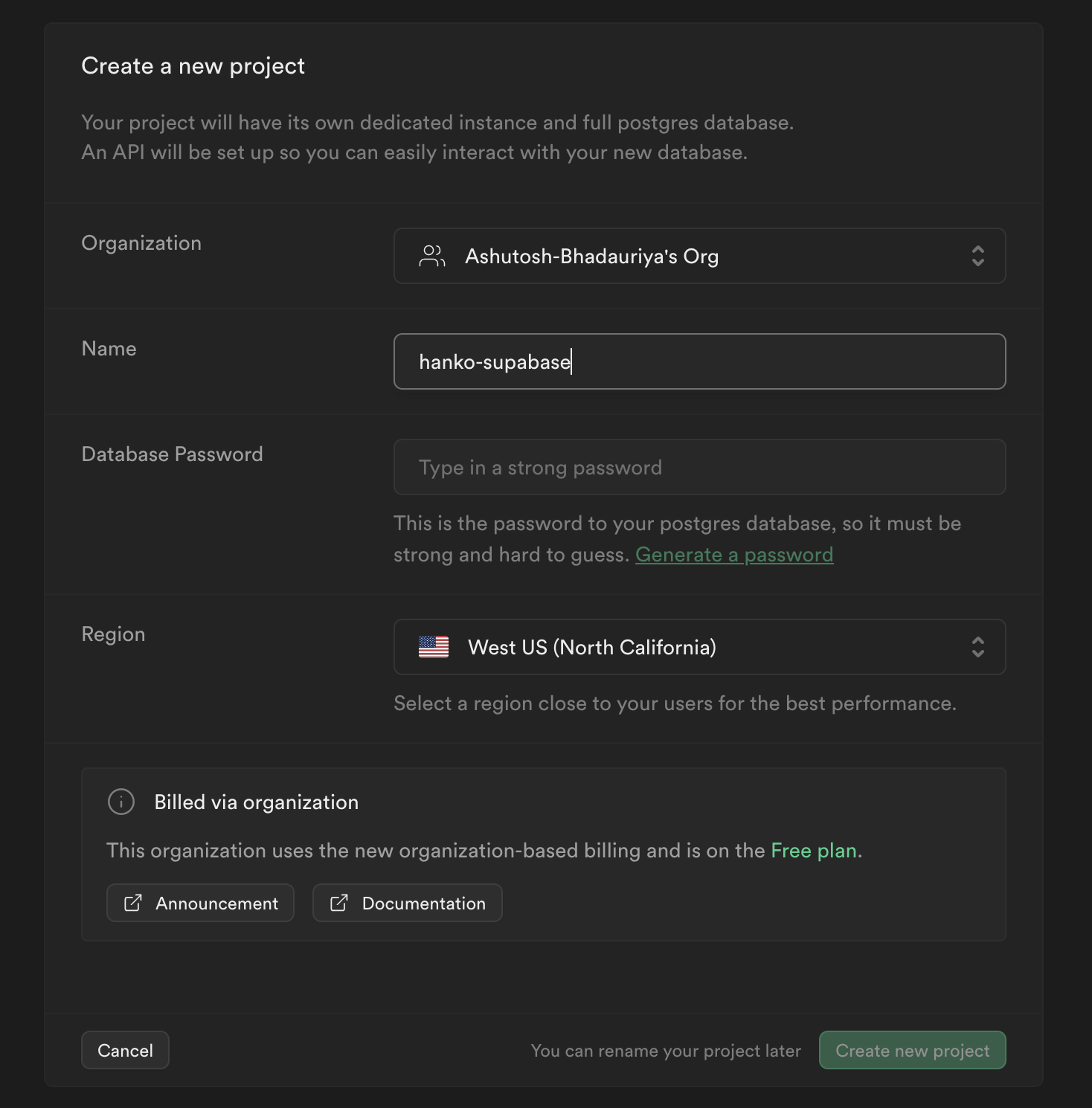 In your project dashboard, navigate to 'Database' and create a new 'users' table.
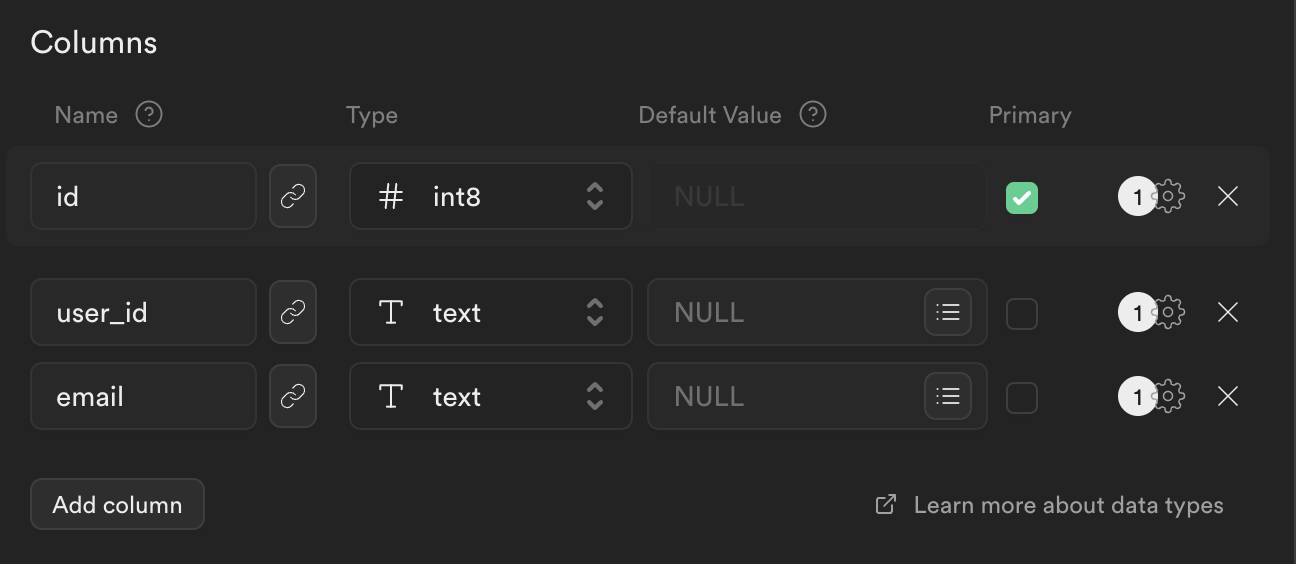
This table will store user information from Hanko. Add these columns beyond the default 'id':
* 'user\_id' (to match Hanko's user ID)
* 'email' (to store user email addresses)
In your project dashboard, navigate to 'Database' and create a new 'users' table.
This table will store user information from Hanko. Add these columns beyond the default 'id':
* 'user\_id' (to match Hanko's user ID)
* 'email' (to store user email addresses)
 In your project dashboard, go to 'Project Settings' > 'API'. Copy the 'URL' and 'service\_role' key, then add them to your `.env.local` file.
```sh .env.local theme={null}
NEXT_PUBLIC_HANKO_API_URL=https://f4****-4802-49ad-8e0b-3d3****ab32.hanko.io
NEXT_PUBLIC_SUPABASE_PROJECT_URL=YOUR_SUPABASE_PROJECT_URL
SUPABASE_SERVICE_ROLE_KEY=YOUR_SUPABASE_SERVICE_ROLE_KEY
```
Add the Supabase client library to your application (assuming Hanko Auth is already configured).
```bash npm theme={null}
npm install @supabase/supabase-js
```
```bash pnpm theme={null}
pnpm add @supabase/supabase-js
```
```bash yarn theme={null}
yarn add @supabase/supabase-js
```
```ts lib/supabase.ts theme={null}
import { createClient } from "@supabase/supabase-js";
export const supabase = createClient(
process.env.NEXT_PUBLIC_SUPABASE_PROJECT_URL!,
process.env.SUPABASE_SERVICE_ROLE_KEY!
);
```
Build an API endpoint to sync user data between Hanko and Supabase.
```ts app/api/create-user/route.ts theme={null}
import { NextResponse } from "next/server";
import { supabase } from "@/lib/supabase";
export async function POST(req: Request, res: Response) {
try {
const user = await req.json();
if (!user) {
return new NextResponse("Unauthorized", { status: 401 });
}
let supauser;
try {
const { data, error } = await supabase
.from("users")
.select("*")
.eq("user_id", user.id)
.single();
if (error) {
console.error(error);
}
supauser = data;
if (!supauser) {
const { data, error } = await supabase
.from("users")
.insert([{ user_id: user.id, email: user.email }]);
if (error) {
console.error(error);
}
supauser = data;
}
} catch (error) {
console.error(error);
}
const user_data = {
...user,
id: supauser?.id,
};
return new NextResponse(JSON.stringify(user_data), { status: 200 });
} catch (error) {
console.error("[CREATEUSER_ERROR]", error);
return new NextResponse("Internal Error", { status: 500 });
}
}
```
Modify your Hanko authentication component to automatically sync user data when `onSessionCreated` triggers.
```tsx components/hanko/HankoAuth.tsx theme={null}
"use client";
import { useEffect, useCallback, useState } from "react";
import { useRouter } from "next/navigation";
import { register, Hanko } from "@teamhanko/hanko-elements";
const hankoApi = process.env.NEXT_PUBLIC_HANKO_API_URL || '';
export default function HankoAuth() {
const router = useRouter();
const [hanko, setHanko] = useState();
useEffect(() => setHanko(new Hanko(hankoApi)), []);
const redirectAfterLogin = useCallback(() => {
// successfully logged in, redirect to a page in your application
router.replace("/dashboard");
}, [router]);
useEffect(
() =>
hanko?.onSessionCreated(async () => {
const user = await hanko.user.getCurrent()
const fetchData = async () => {
if (!user) {
console.error('No user data')
return
}
try {
const response = await fetch('/api/create-user', {
method: 'POST',
body: JSON.stringify(user),
})
if (!response.ok)
throw new Error(`HTTP error! status: ${response.status}`)
} catch (error) {
console.error('Fetch Error: ', error)
}
}
await fetchData()
redirectAfterLogin();
}),
[hanko, redirectAfterLogin]
);
useEffect(() => {
register(hankoApi).catch((error) => {
console.error(error);
});
}, []);
return ;
}
```
}
>
Full source code available on our GitHub
In your project dashboard, go to 'Project Settings' > 'API'. Copy the 'URL' and 'service\_role' key, then add them to your `.env.local` file.
```sh .env.local theme={null}
NEXT_PUBLIC_HANKO_API_URL=https://f4****-4802-49ad-8e0b-3d3****ab32.hanko.io
NEXT_PUBLIC_SUPABASE_PROJECT_URL=YOUR_SUPABASE_PROJECT_URL
SUPABASE_SERVICE_ROLE_KEY=YOUR_SUPABASE_SERVICE_ROLE_KEY
```
Add the Supabase client library to your application (assuming Hanko Auth is already configured).
```bash npm theme={null}
npm install @supabase/supabase-js
```
```bash pnpm theme={null}
pnpm add @supabase/supabase-js
```
```bash yarn theme={null}
yarn add @supabase/supabase-js
```
```ts lib/supabase.ts theme={null}
import { createClient } from "@supabase/supabase-js";
export const supabase = createClient(
process.env.NEXT_PUBLIC_SUPABASE_PROJECT_URL!,
process.env.SUPABASE_SERVICE_ROLE_KEY!
);
```
Build an API endpoint to sync user data between Hanko and Supabase.
```ts app/api/create-user/route.ts theme={null}
import { NextResponse } from "next/server";
import { supabase } from "@/lib/supabase";
export async function POST(req: Request, res: Response) {
try {
const user = await req.json();
if (!user) {
return new NextResponse("Unauthorized", { status: 401 });
}
let supauser;
try {
const { data, error } = await supabase
.from("users")
.select("*")
.eq("user_id", user.id)
.single();
if (error) {
console.error(error);
}
supauser = data;
if (!supauser) {
const { data, error } = await supabase
.from("users")
.insert([{ user_id: user.id, email: user.email }]);
if (error) {
console.error(error);
}
supauser = data;
}
} catch (error) {
console.error(error);
}
const user_data = {
...user,
id: supauser?.id,
};
return new NextResponse(JSON.stringify(user_data), { status: 200 });
} catch (error) {
console.error("[CREATEUSER_ERROR]", error);
return new NextResponse("Internal Error", { status: 500 });
}
}
```
Modify your Hanko authentication component to automatically sync user data when `onSessionCreated` triggers.
```tsx components/hanko/HankoAuth.tsx theme={null}
"use client";
import { useEffect, useCallback, useState } from "react";
import { useRouter } from "next/navigation";
import { register, Hanko } from "@teamhanko/hanko-elements";
const hankoApi = process.env.NEXT_PUBLIC_HANKO_API_URL || '';
export default function HankoAuth() {
const router = useRouter();
const [hanko, setHanko] = useState();
useEffect(() => setHanko(new Hanko(hankoApi)), []);
const redirectAfterLogin = useCallback(() => {
// successfully logged in, redirect to a page in your application
router.replace("/dashboard");
}, [router]);
useEffect(
() =>
hanko?.onSessionCreated(async () => {
const user = await hanko.user.getCurrent()
const fetchData = async () => {
if (!user) {
console.error('No user data')
return
}
try {
const response = await fetch('/api/create-user', {
method: 'POST',
body: JSON.stringify(user),
})
if (!response.ok)
throw new Error(`HTTP error! status: ${response.status}`)
} catch (error) {
console.error('Fetch Error: ', error)
}
}
await fetchData()
redirectAfterLogin();
}),
[hanko, redirectAfterLogin]
);
useEffect(() => {
register(hankoApi).catch((error) => {
console.error(error);
});
}, []);
return ;
}
```
}
>
Full source code available on our GitHub