> ## Documentation Index
> Fetch the complete documentation index at: https://docs.hanko.io/llms.txt
> Use this file to discover all available pages before exploring further.
# Using Hanko with Permit.io
> This guide will show you how to add an easily manageable authorization layer on top of your Hanko implementation, providing you with a simple way to determine what users can access within the application after logging in.
Although this application code is built with Next.js, Permit.io provides SDKs for any common language,
So this example can give you a good idea of how it should look in your language.
Note that this tutorial is meant to be used on an application with Hanko authentication already set up.
We highly recommend cloning our [demo application](https://www.github.com/permitio/permit-hanko/) so you can follow the steps more easily.
If you prefer to read the article without cloning the application, skip this section and continue to [Setup Basic Role Based Authorization](/integrations/permit#setup-basic-role-based-authorization).
## To clone the demo application, run the following commands:
```sh theme={null}
git clone :permitio/permit-hanko.git
```
```sh theme={null}
npm install
```
```sh theme={null}
npm run dev
```
At this point, the application will fail to run as we need to set up the Hanko and Permit services.
## Setting up Hanko Passkey Authentication:
Visit the Hanko webapp, create a new organization (Or use your existing one), and give it the name you want.
In the main dashboard, create a new project - assign [http://localhost:3000](http://localhost:3000) as
the App URL.
From the Settings > General section of the project, copy the API URL.
Paste the API URL to a new file called `.env.local`, in the root directory of
the application. When we run the application again, we can see that the error
is gone, and we can see the login page.Now, when we run the application again,
we can see that the error is gone, and we can see the login page.
To add this authentication window, use the Hanko SDK for JavaScript. You can see the element that implemented the login flow in the `app/auth/login/page.tsx` file.
```jsx theme={null}
```
We added the following middleware logic to the `middleware.ts` file that redirects the user to the login page if they are not authenticated:
```ts theme={null}
const authenticateUser = async (req: NextRequest): Promise => {
if (!hankoApiUrl) {
return "";
}
// Get Hanko token from cookie
const hanko = req.cookies.get("hanko")?.value;
...
// Authenticate user using Hanko
const user = await authenticateUser(req);
// Redirect to login page if user is not authenticated
if (!user) {
urlToRedirect.pathname = LOGIN_URL;
return NextResponse.rewrite(urlToRedirect);
}
```
With the authentication configuration and flow configured, we are ready to continue with the implementation of Permit.io for authorization in our application.
## Setup Basic Role Based Authorization
With authentication done, it is time to set up our authorization layer.
We'll start with setting up basic **role-based access control (RBAC)** to determine the actions our users can perform.
In the [`/app/api/notes/route.ts`](https://github.com/permitio/permit-hanko/blob/main/src/app/api/notes/route.ts),
you'll find four functions, `GET`, `POST`, `PUT`, and `DELETE` - responsible for the logic of getting, creating, updating, and deleting notes,
respectively.
If you look at the `route.ts` file, you will see that we are going to use a generic
[`permit.check`](https://docs.permit.io/how-to/enforce-permissions/check/) [middleware.ts](https://github.com/permitio/permit-hanko/blob/main/src/middleware.ts)
file.
```ts theme={null}
const response = await fetch(`${pdpUrl}/allowed`, {
method: "POST",
headers: {
Authorization: `Bearer ${permitApiKey}`,
"Content-Type": "application/json",
Accept: "application/json",
},
body: JSON.stringify({
user: user,
action,
resource: resource,
context: {},
}),
});
```
This code is a generic `permit.check` function that checks the permissions configured for the application using three factors:
**User** - the entity that attempts to perform the operation (in our case, a user authenticated with Hanko).
**Action** - the operation that the user will attempt to perform (in our case, `GET`).
**Resource** - the entity that the user will attempt to perform the operation on (in our case, the note).
At this point, we haven't configured the Permit SDK key in the app, so any
user can perform any operation. Setting up a Permit.io account will fix this.
Now, we must configure these permissions in Permit.io.
Note that we can adapt them to our needs without having to change any of the application code!
Go to [app.permit.io](https://app.permit.io/), Create an account, set up a new
organization, and give it whichever name you want.
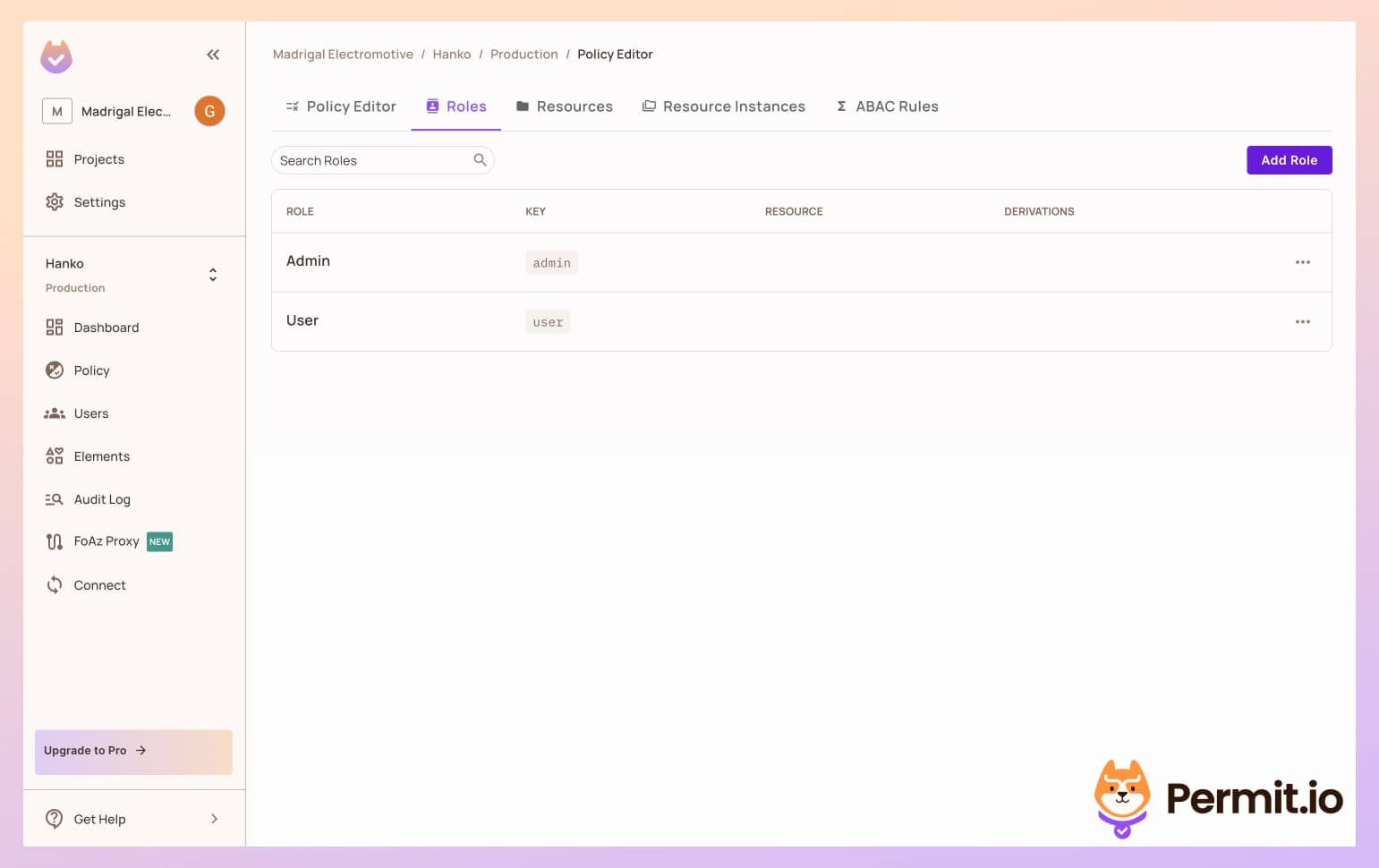
In the left sidebar, click on Policy, then go to the Roles tab, and create
the following roles: Admin and User.
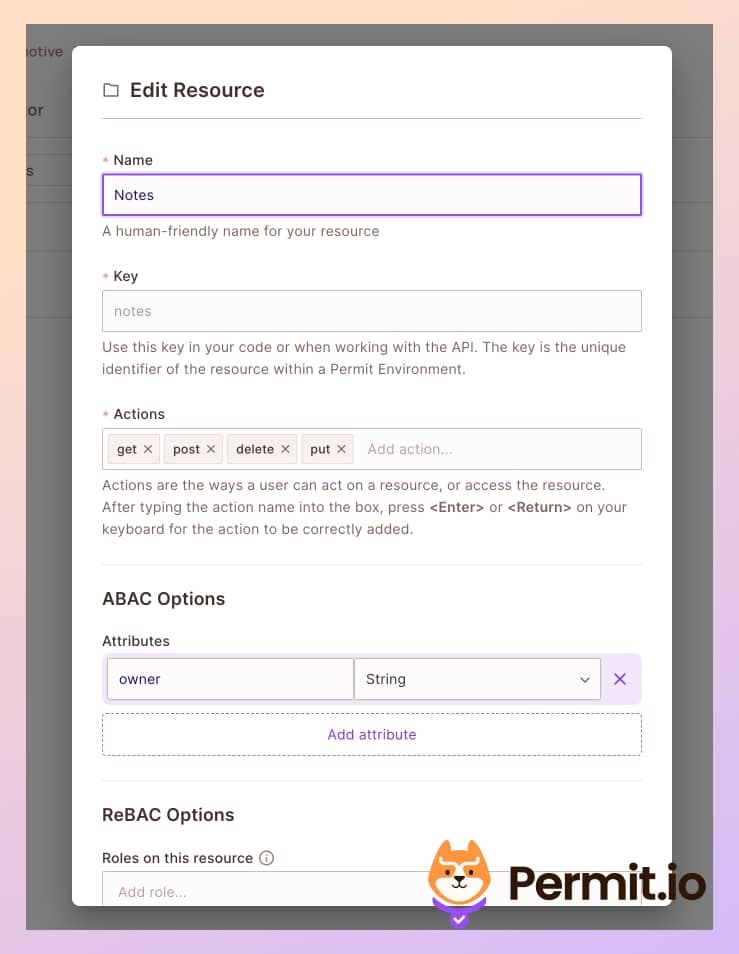
 In the Resources tab, create a new resource called notes, with the following four actions and an owner attribute: `get`, `post`, `delete`, and `put`.
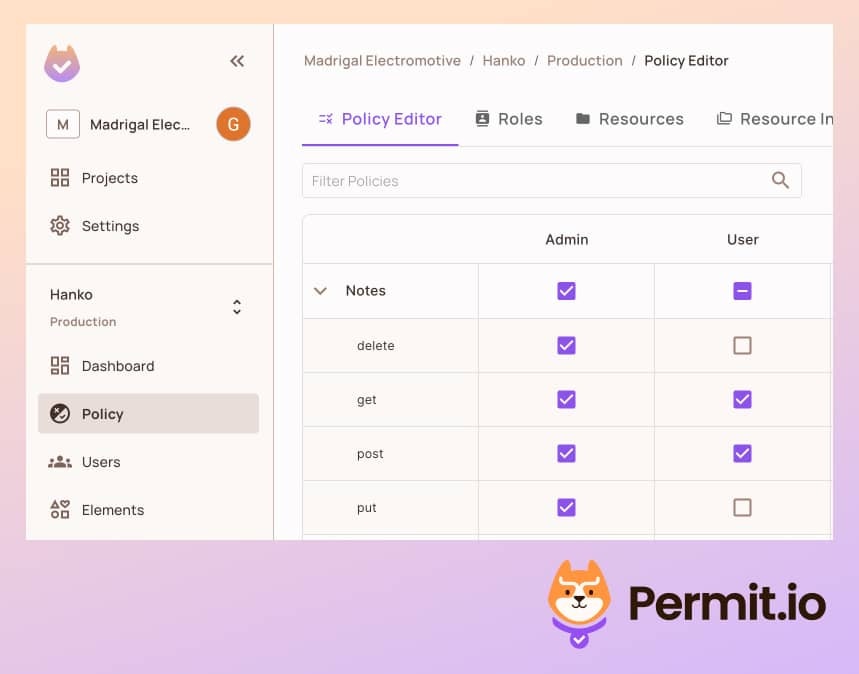
 Back in the Policy tab, let's allow all users to get and `post` notes, and only admins to `put`, and `delete` notes.
 To copy your API key, click your user profile in the top right of the screen, and click `Copy SDK API Key`.
Add the key in your in the env.local file:
```sh theme={null}
PERMIT_API_KEY=
```
We will also need to configure the Permit.io API endpoint to check the permissions. For this purpose, we will use the Permit cloud service.
```sh theme={null}
PERMIT_PDP_URL=[https://cloudpdp.api.permit.io](https://cloudpdp.api.permit.io)
```
To make sure all environment variables are in place, restart the application.
Now that we have everything set up within Permit.io, it is time to sign up with a user and test if it works.
## Sync Hanko Users to Permit.io
To check the permissions we configured, we need to sync the users from Hanko to Permit.io, so our users will be known to the Permit policy engine.
We will want to automatically assign a user role to every new user, so they will also be part of our newly configured policy. This role helps us to keep the principle of least privilege and give new users only very basic permissions in the application.
In the demo application, you can find the following code in the `src/app/api/permit/route.ts` file:
```ts theme={null}
const response = await permit.api.syncUser({
key,
email,
attributes: {
roles: ["user"],
},
});
await permit.api.roleAssignments.assign({
role: "user",
tenant: "default",
user: key,
});
```
This code, as you can see, syncs the user to Permit.io if they do not exist yet.
## Check the Permissions
In the `localhost:3000` page, log in with a user of your choice, and make
sure you have the right passkey configured.
Create a new note on the first screen of the application. It should appear
on the list.
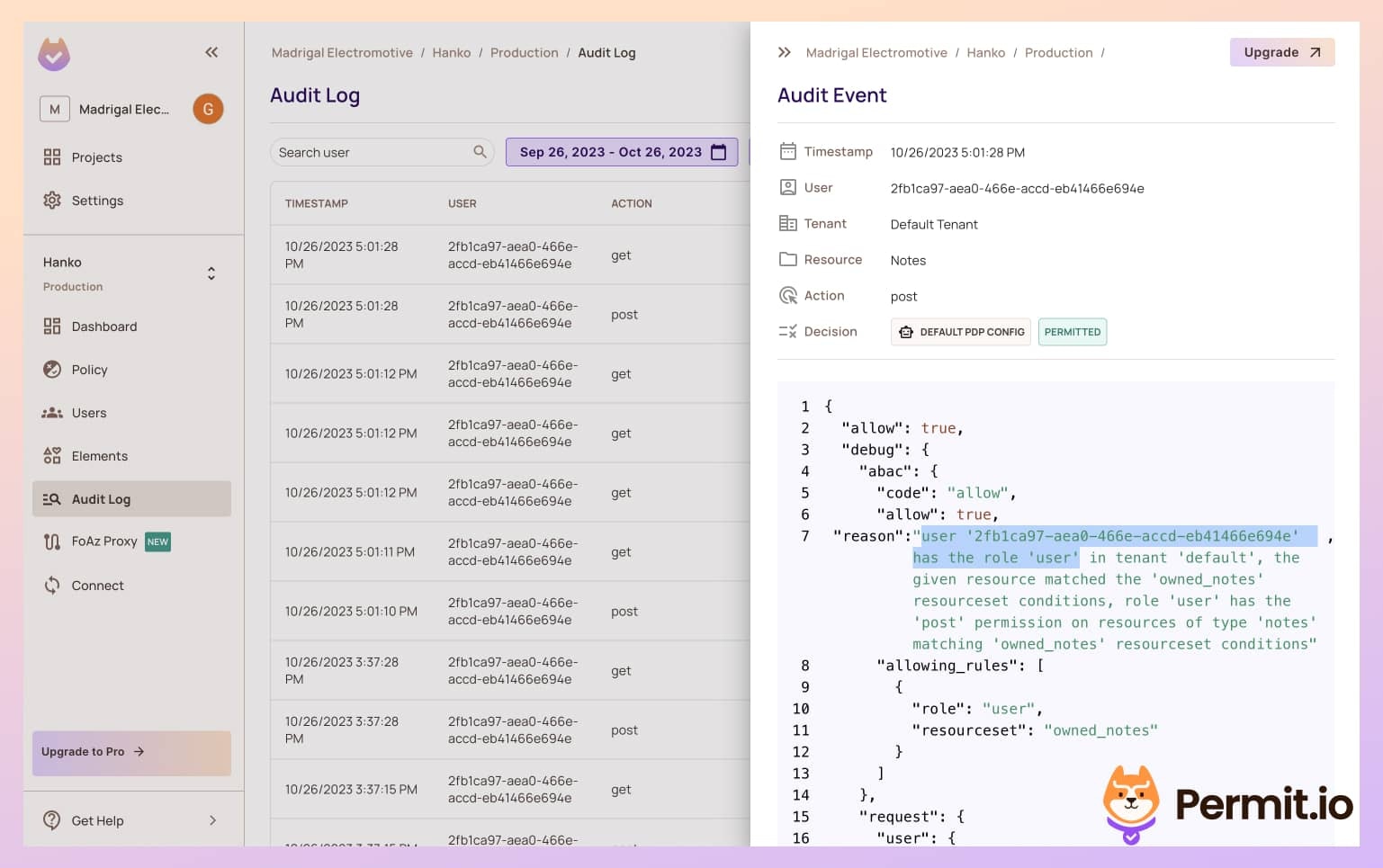
In the Permit.io Dashboard, go to the Audit Log tab in the left sidebar. You
should see that the `post` action was logged. Clicking the log will allow
you to see detailed information about the authorization decision that
allowed for this action to be performed. `Allow` will equal `true` as this
user has the User role.
To copy your API key, click your user profile in the top right of the screen, and click `Copy SDK API Key`.
Add the key in your in the env.local file:
```sh theme={null}
PERMIT_API_KEY=
```
We will also need to configure the Permit.io API endpoint to check the permissions. For this purpose, we will use the Permit cloud service.
```sh theme={null}
PERMIT_PDP_URL=[https://cloudpdp.api.permit.io](https://cloudpdp.api.permit.io)
```
To make sure all environment variables are in place, restart the application.
Now that we have everything set up within Permit.io, it is time to sign up with a user and test if it works.
## Sync Hanko Users to Permit.io
To check the permissions we configured, we need to sync the users from Hanko to Permit.io, so our users will be known to the Permit policy engine.
We will want to automatically assign a user role to every new user, so they will also be part of our newly configured policy. This role helps us to keep the principle of least privilege and give new users only very basic permissions in the application.
In the demo application, you can find the following code in the `src/app/api/permit/route.ts` file:
```ts theme={null}
const response = await permit.api.syncUser({
key,
email,
attributes: {
roles: ["user"],
},
});
await permit.api.roleAssignments.assign({
role: "user",
tenant: "default",
user: key,
});
```
This code, as you can see, syncs the user to Permit.io if they do not exist yet.
## Check the Permissions
In the `localhost:3000` page, log in with a user of your choice, and make
sure you have the right passkey configured.
Create a new note on the first screen of the application. It should appear
on the list.
In the Permit.io Dashboard, go to the Audit Log tab in the left sidebar. You
should see that the `post` action was logged. Clicking the log will allow
you to see detailed information about the authorization decision that
allowed for this action to be performed. `Allow` will equal `true` as this
user has the User role.
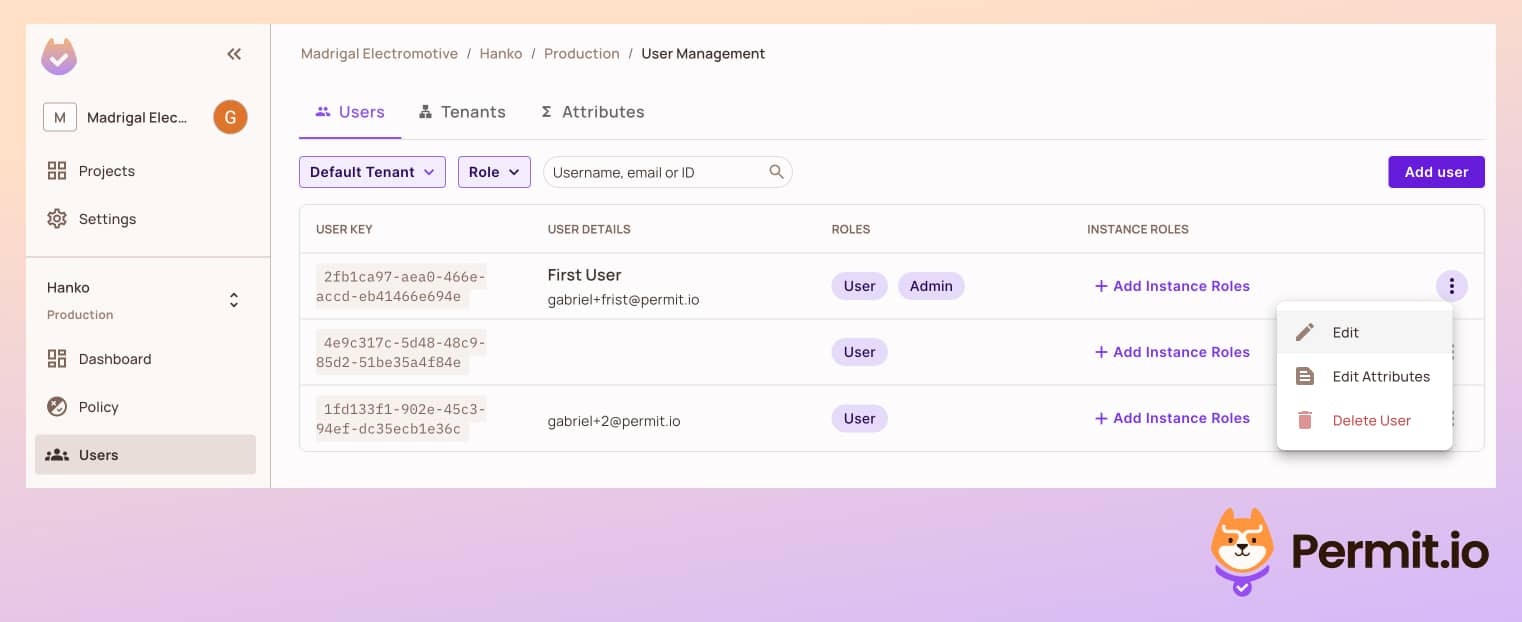
 If we try to delete the note, we will get an error message saying we are not
allowed to access this resource. If we grant an Admin role to this user via
Permit.io's UI, the error will be resolved and we will be able to delete the
note.
If we try to delete the note, we will get an error message saying we are not
allowed to access this resource. If we grant an Admin role to this user via
Permit.io's UI, the error will be resolved and we will be able to delete the
note.
 Now that we are done with the Role Based model in our application let's go to the next phase and make our permissions more fine-grained
## Add Fine-Grained Attribute-Based Authorization
For this section to run properly, you need to run the Permit.io PDP as a
sidecar. [You can read how to do that
here](https://docs.permit.io/how-to/deploy/deploy-to-production).
As stated before, the delete action in our app is supposed to be limited to the same user who created the role. This is a more complex policy that cannot be defined by using simple roles - it needs attributes as well.
We can configure this policy in Permit and see it take effect immediately in the application.
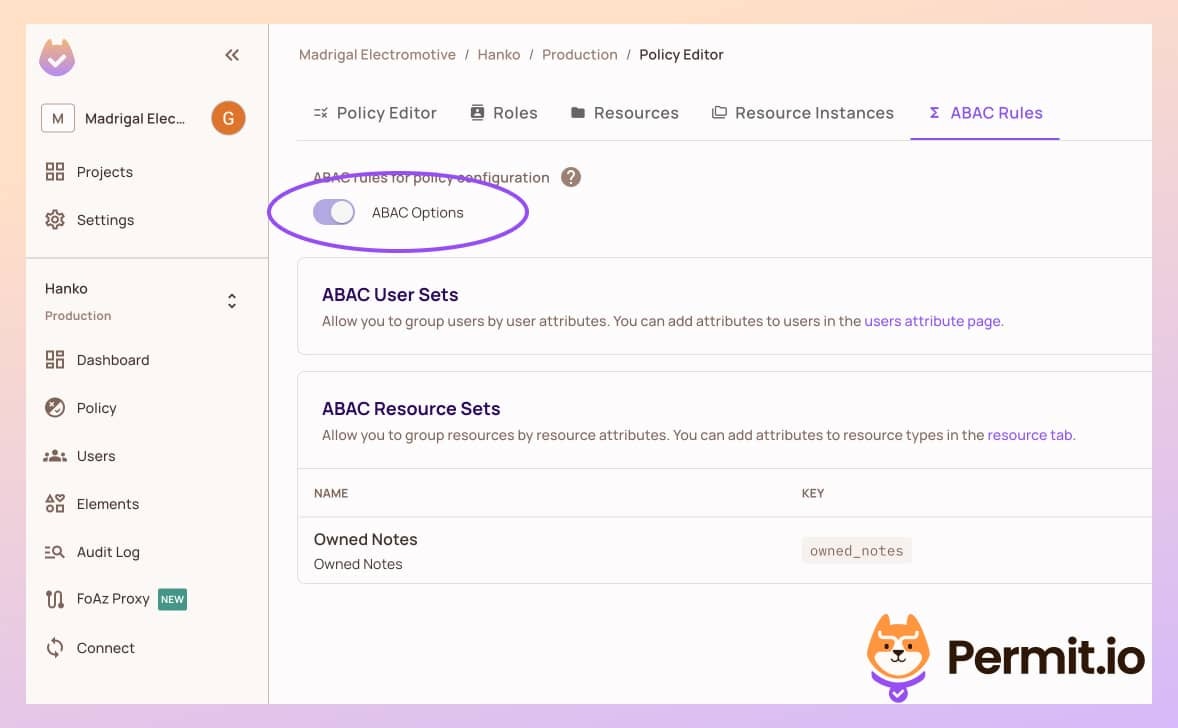
Navigate to the Policy page, select ABAC Rules, and activate the ABAC
option.
Now that we are done with the Role Based model in our application let's go to the next phase and make our permissions more fine-grained
## Add Fine-Grained Attribute-Based Authorization
For this section to run properly, you need to run the Permit.io PDP as a
sidecar. [You can read how to do that
here](https://docs.permit.io/how-to/deploy/deploy-to-production).
As stated before, the delete action in our app is supposed to be limited to the same user who created the role. This is a more complex policy that cannot be defined by using simple roles - it needs attributes as well.
We can configure this policy in Permit and see it take effect immediately in the application.
Navigate to the Policy page, select ABAC Rules, and activate the ABAC
option.
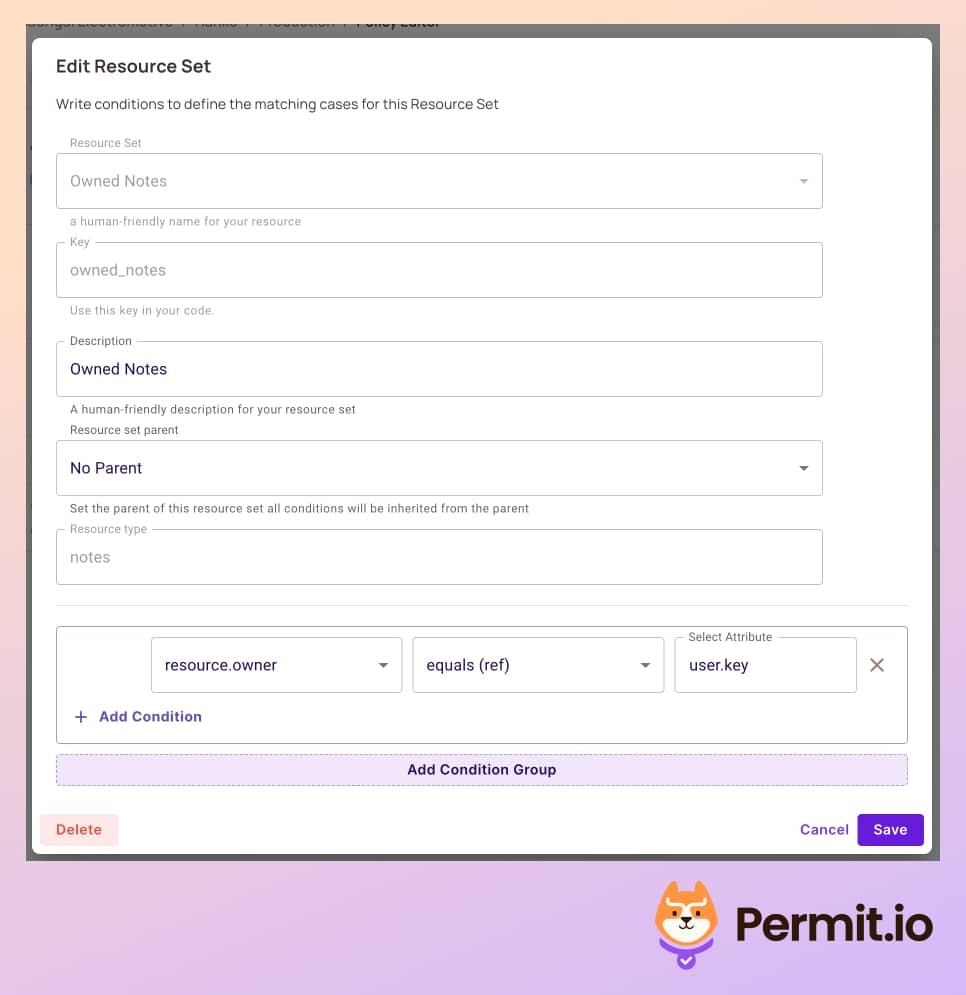
 Go to the Resources tab and create a new Resource Set rule. This rule should
validate if the user is the note's owner.
Go to the Resources tab and create a new Resource Set rule. This rule should
validate if the user is the note's owner.
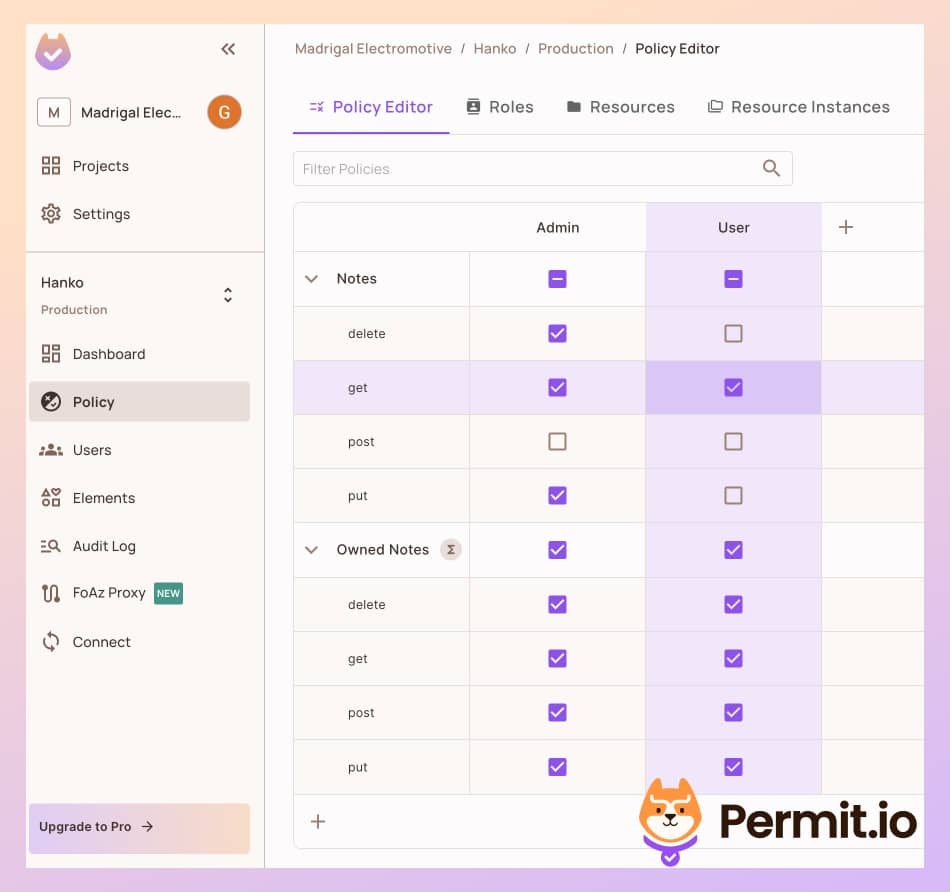
 Return to the Policy tab and establish a policy allowing `put` and
`delete` actions exclusively for the note's owner. Ensure the admin role
retains all-action privileges.
Return to the Policy tab and establish a policy allowing `put` and
`delete` actions exclusively for the note's owner. Ensure the admin role
retains all-action privileges.
 Log out from the current user, register a new user, and verify that this new
user cannot delete tasks.
Log out from the current user, register a new user, and verify that this new
user cannot delete tasks.
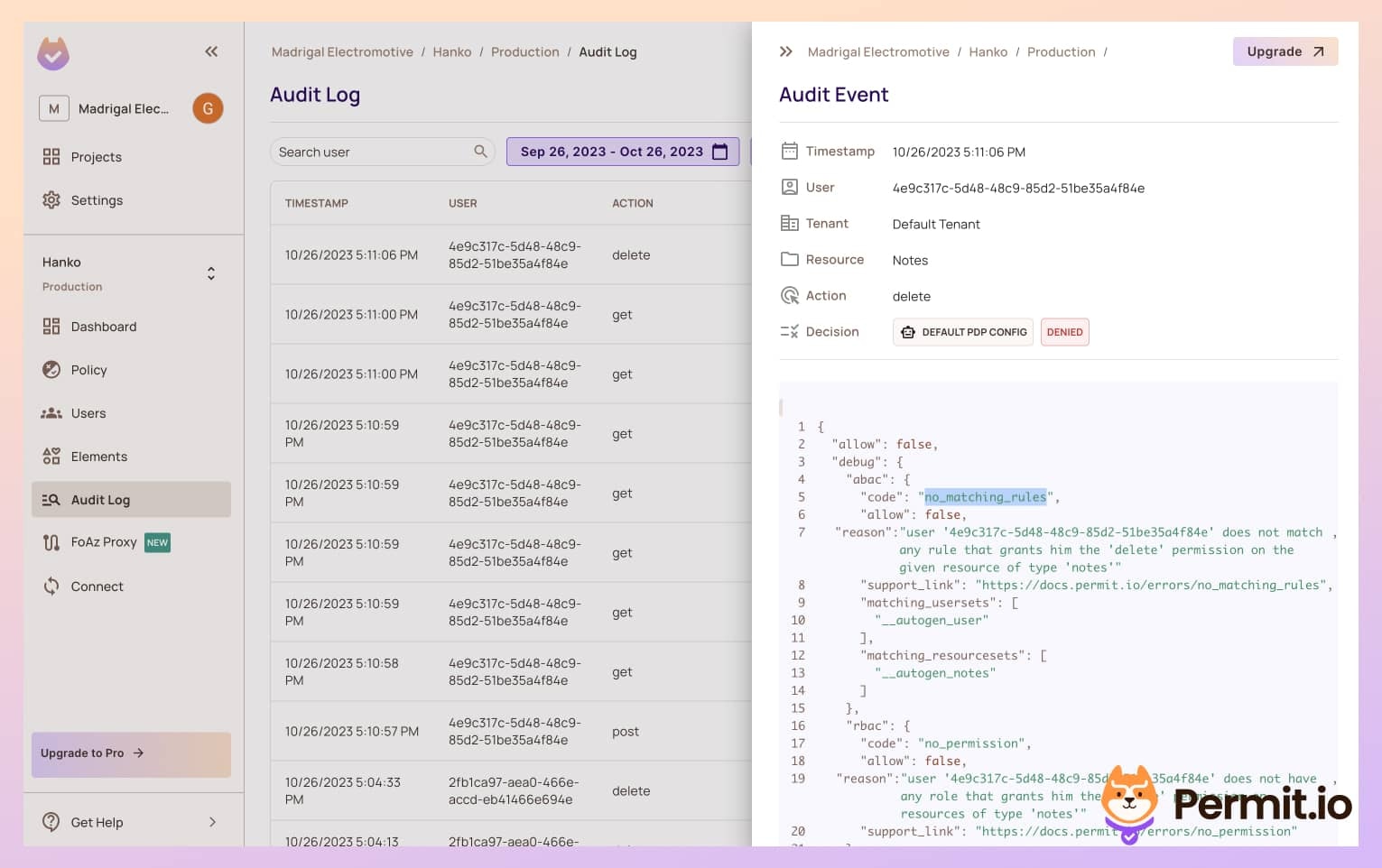 As the new user, create a note and confirm the ability to delete the newly
created note.
Log in with a different user after creating the note and attempt to delete it. This should fail, as the logged-in user is not the creator.
## Enforce Permissions Everywhere
Sometimes, you will encounter a situation where you need to check permissions in the middle of the application logic. For example, you could want to restrict a particular operation to premium users only.
Using Permit, the policy configuration always remains the same, and you'll only have to use the `permit.check` function in every place within the code to determine allowed/not allowed permissions.
```javascript theme={null}
new Permit({token: });
permit.check(user, action, resource);
```
Using the `permit.check` function also lets you make decisions based on data that might not exist in the scope of the request in the middleware, so you get more granular decisions with no code changes.
## Add Fine-Grained Relationship Based Authorization
Another approach for fine-grained authorization that we can use is Relationship-Based Access Control (ReBAC).
Assuming a note app, we might want to create workspaces, organizations, and folders for our notes.
In this case, we might do not have a dedicated owner field in the note entity, but we have a relationship between the note and the workspace.
Permit also supports the configuration of ReBAC policies, we can easily implement it in our application without changing the
`permit.check` or any enforcement code in the app. [Read more about modeling ReBAC here](https://docs.permit.io/modeling/google-drive).
As the new user, create a note and confirm the ability to delete the newly
created note.
Log in with a different user after creating the note and attempt to delete it. This should fail, as the logged-in user is not the creator.
## Enforce Permissions Everywhere
Sometimes, you will encounter a situation where you need to check permissions in the middle of the application logic. For example, you could want to restrict a particular operation to premium users only.
Using Permit, the policy configuration always remains the same, and you'll only have to use the `permit.check` function in every place within the code to determine allowed/not allowed permissions.
```javascript theme={null}
new Permit({token: });
permit.check(user, action, resource);
```
Using the `permit.check` function also lets you make decisions based on data that might not exist in the scope of the request in the middleware, so you get more granular decisions with no code changes.
## Add Fine-Grained Relationship Based Authorization
Another approach for fine-grained authorization that we can use is Relationship-Based Access Control (ReBAC).
Assuming a note app, we might want to create workspaces, organizations, and folders for our notes.
In this case, we might do not have a dedicated owner field in the note entity, but we have a relationship between the note and the workspace.
Permit also supports the configuration of ReBAC policies, we can easily implement it in our application without changing the
`permit.check` or any enforcement code in the app. [Read more about modeling ReBAC here](https://docs.permit.io/modeling/google-drive).