> ## Documentation Index
> Fetch the complete documentation index at: https://docs.hanko.io/llms.txt
> Use this file to discover all available pages before exploring further.
# Modifying your login flow
> How to add Hanko Authenticator login to your existing login flow.
Once you decide to offer authentication through the Hanko Authenticator, there are a number of modifications required to your existing login flow. This section provides suggestions on how to adjust your existing application to accommodate the required changes.
## Login with the Hanko Authenticator
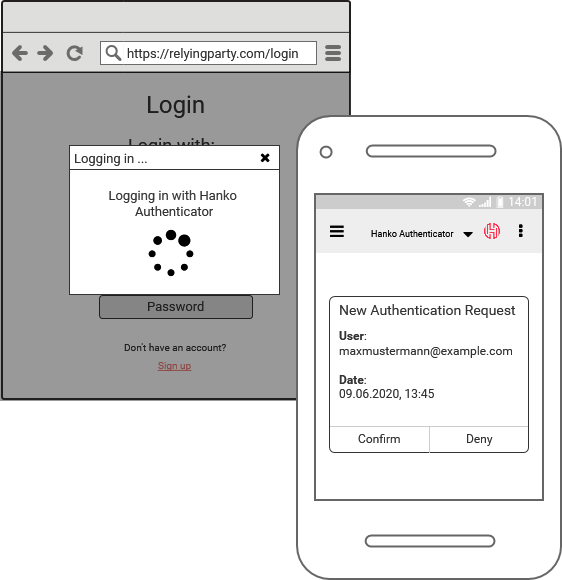
After the user selects the Hanko Authenticator for logging in, initialize the process as described in the [getting started guide](/hanko-authenticator/quickstart/authenticator-app-authentication). Because the Hanko Authenticator uses out-of-band communication, the API will trigger a push notification to the user's previously registered device after initialization. Interacting with the notification opens the Authenticator app and prompts the user to confirm the login request.
Because the original client needs to be updated about the login request status, use a fixed-delay polling mechanism in your application after triggering the login request, in order to retrieve the status of the request through the `{API_URL}/v1/uaf/requests/{id}` endpoint. During out-of-band communication, provide visual feedback in the originating client — for example a loading spinner — and redirect to the user's profile or an error page once polling resolves the request status to an `OK` or `FAILED` state.
 ## Remembering devices via cookies or local storage
Consider the following scenario: a user logged out of your application, or was logged out due to an expired session, and now wants to log in again. The user provides an e-mail address and hits "Login". You could then offer a view for selecting the authenticator type to use for logging in, but this requires the user to perform these steps on every login.
You can provide a more seamless experience by remembering registered devices on the client side, e.g. using cookies or the browser's local storage. Once the user attempts to log in, use this device information to automatically trigger authentication with the previously used authenticator.
One way to approach this is to use the `deviceID` contained in the Hanko request the Hanko API responds with on registration. After a successful registration, extract the `deviceID` from the Hanko request and store it in a cookie or local storage. The next time the user logs in, first use the device management API to get a list of all registered devices for the user, then compare this list with the device information in the cookie or local storage. If there is a match, trigger authentication with that device. If there is no match — for example if the user logs in from a different browser or deleted the cookie/local storage data — fall back to the authenticator selection view.
## Remembering devices via cookies or local storage
Consider the following scenario: a user logged out of your application, or was logged out due to an expired session, and now wants to log in again. The user provides an e-mail address and hits "Login". You could then offer a view for selecting the authenticator type to use for logging in, but this requires the user to perform these steps on every login.
You can provide a more seamless experience by remembering registered devices on the client side, e.g. using cookies or the browser's local storage. Once the user attempts to log in, use this device information to automatically trigger authentication with the previously used authenticator.
One way to approach this is to use the `deviceID` contained in the Hanko request the Hanko API responds with on registration. After a successful registration, extract the `deviceID` from the Hanko request and store it in a cookie or local storage. The next time the user logs in, first use the device management API to get a list of all registered devices for the user, then compare this list with the device information in the cookie or local storage. If there is a match, trigger authentication with that device. If there is no match — for example if the user logs in from a different browser or deleted the cookie/local storage data — fall back to the authenticator selection view.