> ## Documentation Index
> Fetch the complete documentation index at: https://docs.hanko.io/llms.txt
> Use this file to discover all available pages before exploring further.
# Sign in with Microsoft
> Step-by-step guide to integrating Sign in with Microsoft using Hanko. Enable secure authentication and seamless onboarding for your app's users.
**Hanko Microsoft OAuth Integration Guide**:
**About Hanko**:
Hanko is a modern open source authentication solution and the fastest way you integrate passkeys, 2FA, SSO, and more—with full control over your data. Move between self-hosted and Hanko Cloud anytime. No lock-in. Just Auth how it should be: secure, user friendly, and fully yours.
**What This Guide Covers**: This guide demonstrates how to integrate Microsoft OAuth authentication with Hanko, allowing users to sign in using their Microsoft accounts (including personal, work, or school accounts). You'll learn to create an Azure application registration, configure Microsoft Entra ID, and implement Microsoft authentication in your application.
**Key Technologies**:
* OAuth 2.0 and OpenID Connect protocols
* Microsoft Entra ID (formerly Azure Active Directory)
* Azure Application Registration
* JWT (JSON Web Tokens) for secure session management
* Microsoft Graph API integration
**Prerequisites**:
* Active Hanko Cloud account with a configured project
* Microsoft Azure account for application registration
* Basic understanding of OAuth 2.0 authentication flow
* Understanding of Azure multi-tenant applications
**Tasks You'll Complete**:
* Create and configure an Azure application registration
* Set up multi-tenant authentication with proper account type selection
* Generate client secrets and configure redirect URLs
* Configure optional claims for enhanced security (UPN, email verification)
* Configure Microsoft OAuth credentials in Hanko Console
* Implement Microsoft authentication in your frontend application
## Prerequisites
1. You need a Hanko Cloud account and a project. Learn more on how to set them up [here](https://docs.hanko.io/setup-hanko-cloud).
2. You need a Microsoft Azure account. You can create account [here](https://azure.microsoft.com/en-us/free/).
## Get your provider redirect URL
When creating an Azure Application, you need to provide a redirect URL that determines where the third party
provider redirects after a successful login. This redirect URL consists of the base URL of the Hanko API
and the [`/thirdparty/callback`](http://docs.hanko.io/api/public#tag/Third-Party/operation/thirdPartyCallback) endpoint. You can always view your redirect URL in the Hanko Cloud Console:
1. Sign in to [cloud.hanko.io](https://cloud.hanko.io).
2. Select your `Organization`.
3. Select your `Project`.
4. In the left sidebar, click `Settings`, then select `Identity providers`.
5. Find your redirect URL in the `Redirect URL` input.
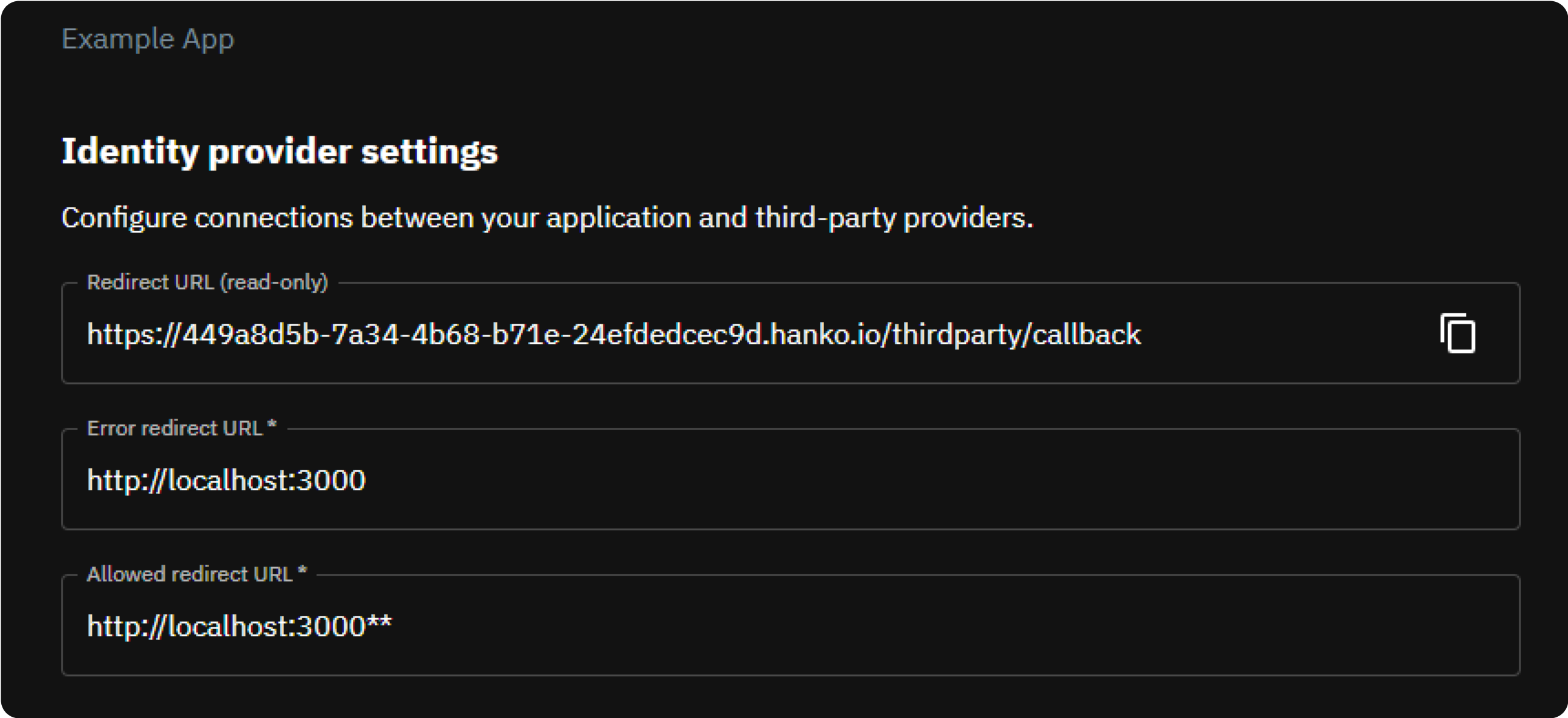 You need the redirect URL for [creating a new Azure application](#create-a-new-azure-application) in the next step and when
[configuring your credentials with Hanko](#configure-credentials-with-hanko) (you will also configure the remaining
configuration options visible in the above screen in this step).
## Create a new Azure application
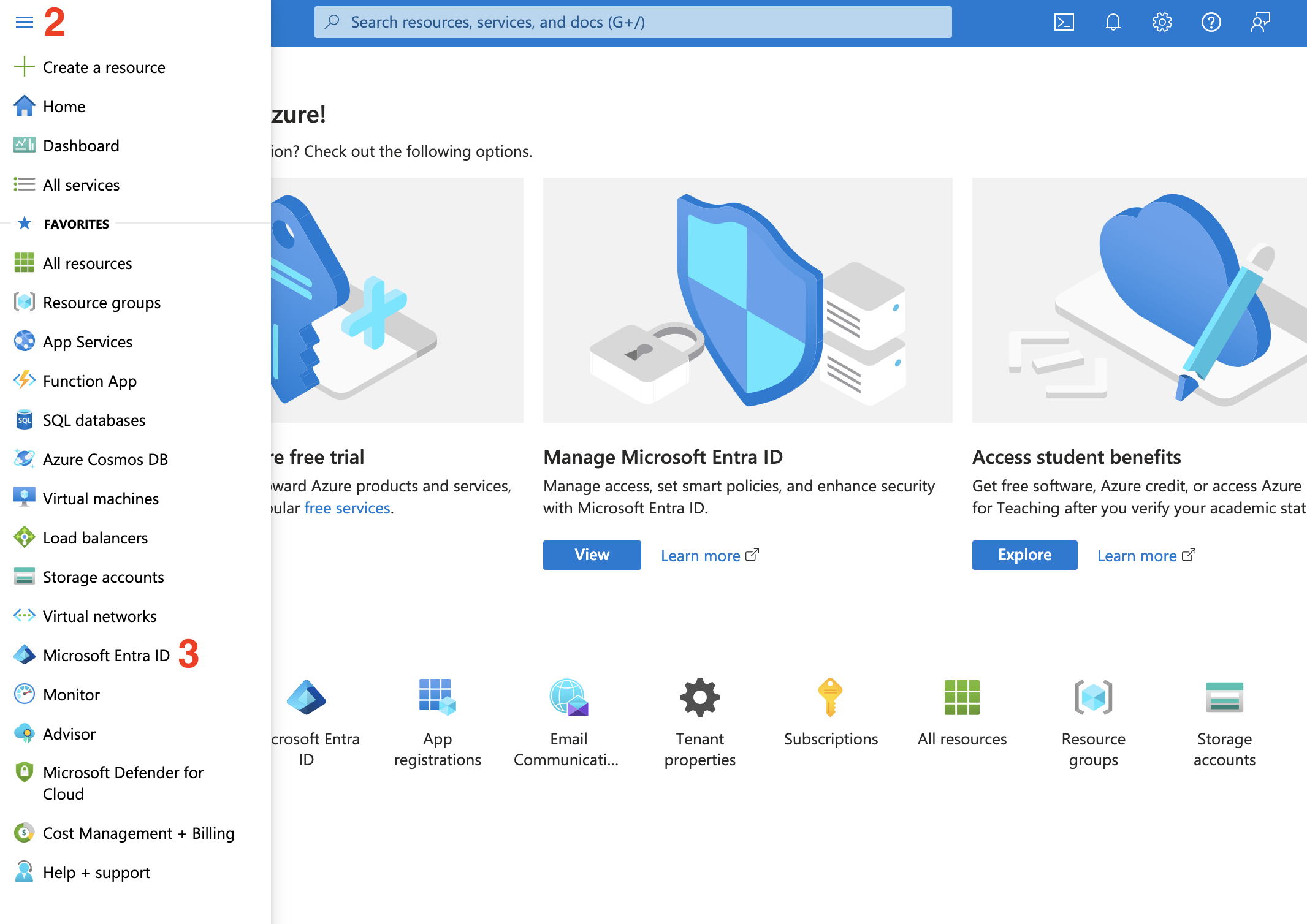
1. Navigate to and sign in to the [Azure portal](https://portal.azure.com).
2. Click the hamburger menu in the navbar in the top left.
3. Select `Microsoft Entra ID`.
You need the redirect URL for [creating a new Azure application](#create-a-new-azure-application) in the next step and when
[configuring your credentials with Hanko](#configure-credentials-with-hanko) (you will also configure the remaining
configuration options visible in the above screen in this step).
## Create a new Azure application
1. Navigate to and sign in to the [Azure portal](https://portal.azure.com).
2. Click the hamburger menu in the navbar in the top left.
3. Select `Microsoft Entra ID`.
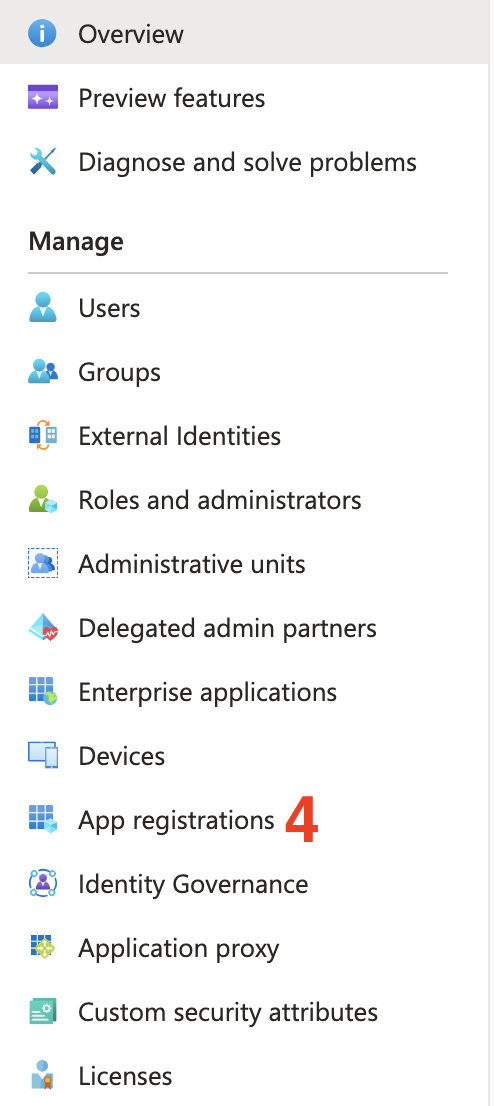
 4. Select `App registrations` in the left sidebar.
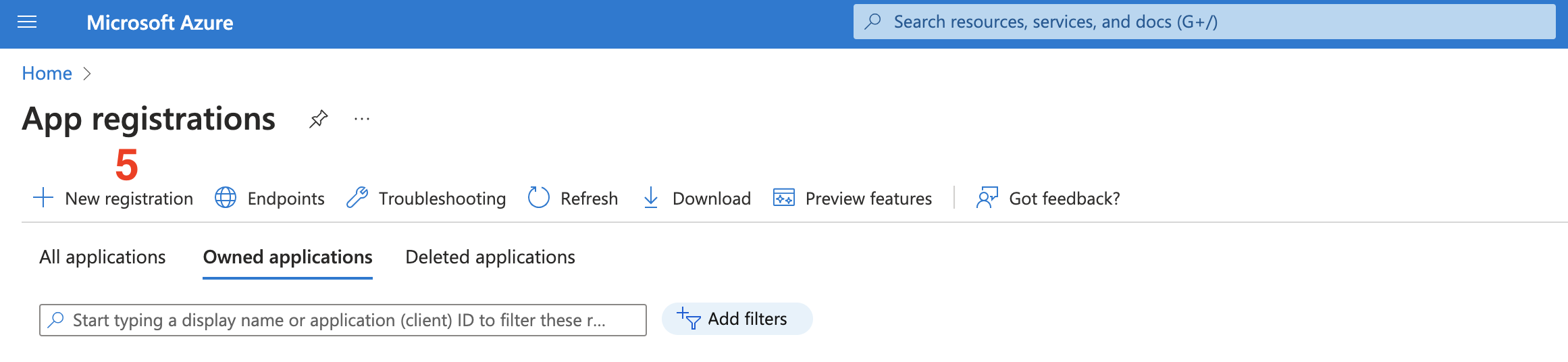
 5. On the top left, click on `New registration`.
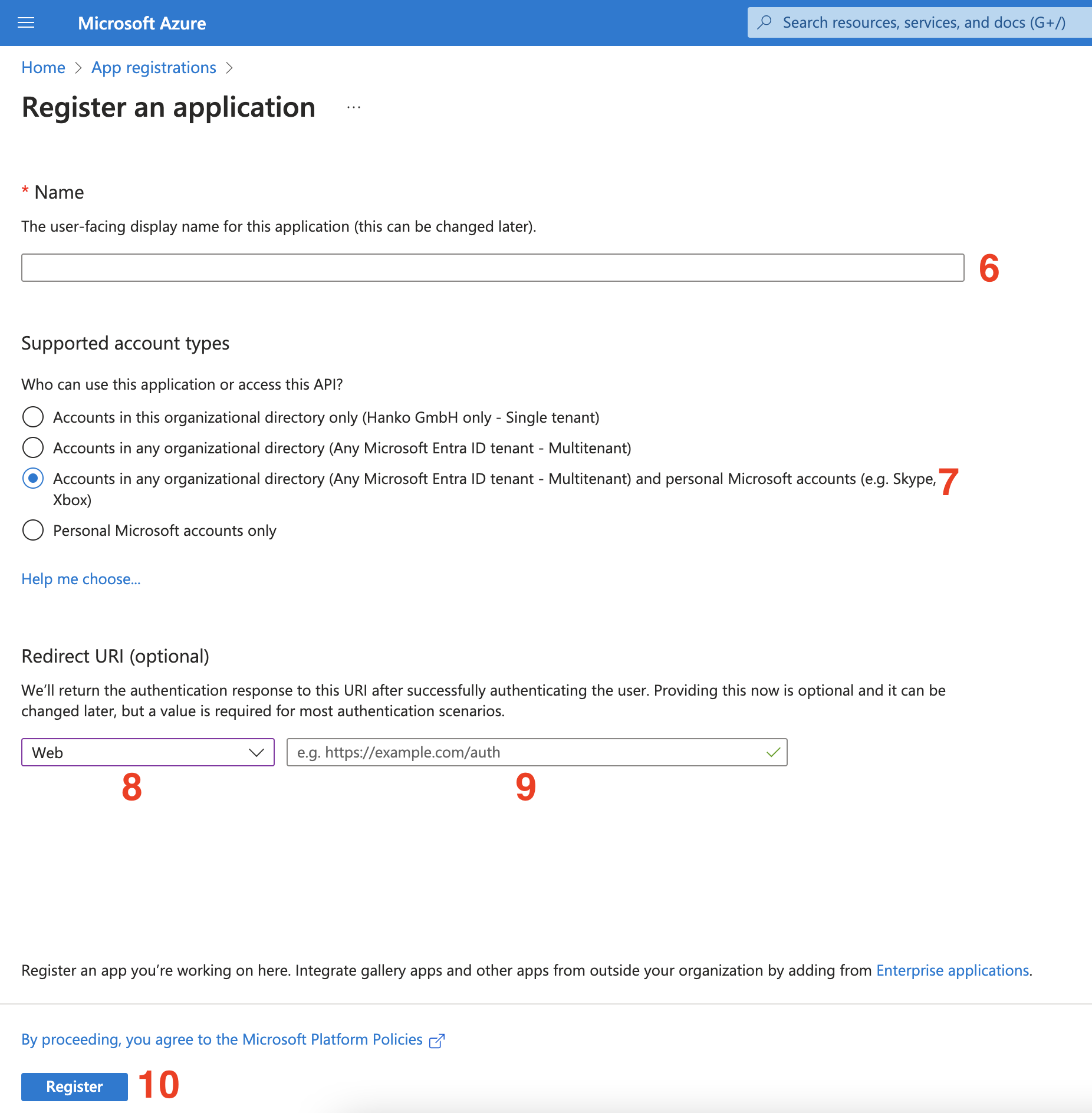
 6. Enter your Application name.
7. Under `Supported account types` choose the third option: `Accounts in any organizational directory (Any Azure AD directory - Multitenant) and personal Microsoft accounts (e.g. Skype, Xbox)`.
The above option allows any user to login to your application. Other account types (single-tenant only,
multi-tenant or public only) are currently not supported.
8. Under the `Redirect URI` section select `Web` as the platform.
9. Enter the `Redirect URL` you obtained in the [first step](#get-your-provider-redirect-url) as the value.
10. Click on `Register`.
6. Enter your Application name.
7. Under `Supported account types` choose the third option: `Accounts in any organizational directory (Any Azure AD directory - Multitenant) and personal Microsoft accounts (e.g. Skype, Xbox)`.
The above option allows any user to login to your application. Other account types (single-tenant only,
multi-tenant or public only) are currently not supported.
8. Under the `Redirect URI` section select `Web` as the platform.
9. Enter the `Redirect URL` you obtained in the [first step](#get-your-provider-redirect-url) as the value.
10. Click on `Register`.
 ## Get your client ID and secret
Next, you need to obtain your client ID and client secret.
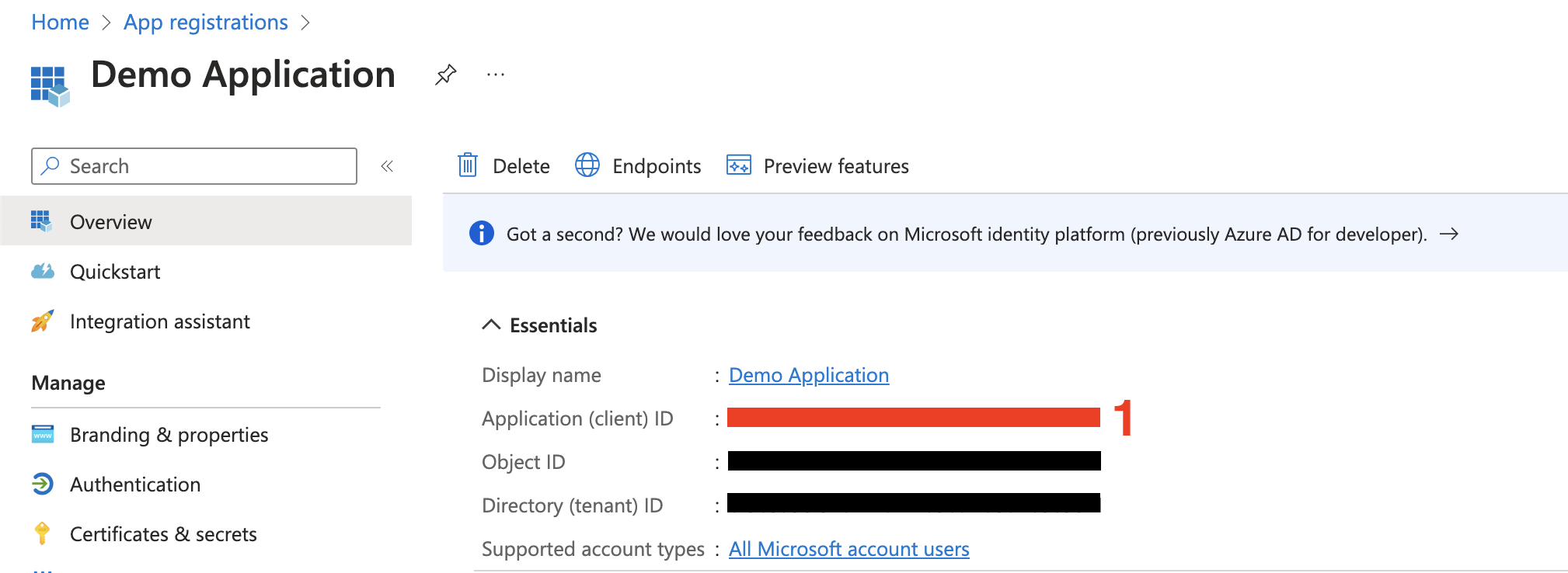
1. You can view the client ID of your app in the `Essentials` section on the `Overview` page (`Application (client) ID`)
of your application/app registration.
You will need this when [configuring your credentials with Hanko](#configure-credentials-with-hanko)
## Get your client ID and secret
Next, you need to obtain your client ID and client secret.
1. You can view the client ID of your app in the `Essentials` section on the `Overview` page (`Application (client) ID`)
of your application/app registration.
You will need this when [configuring your credentials with Hanko](#configure-credentials-with-hanko)
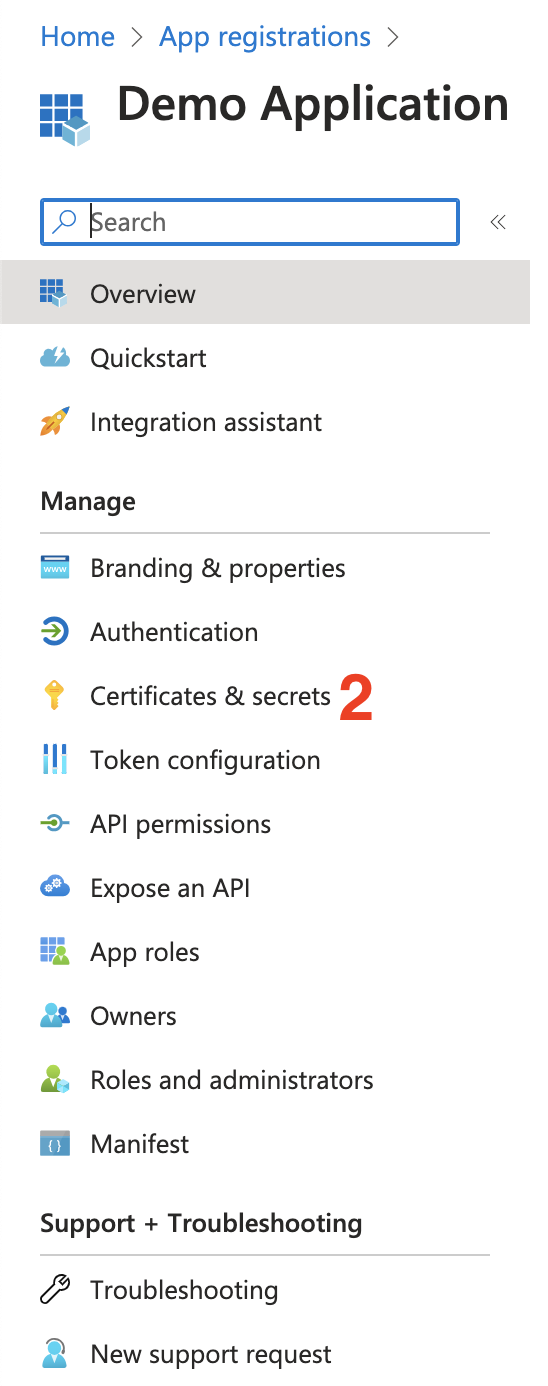
 2. To create a client secret, select `Certificates & Secrets` in the sidebar.
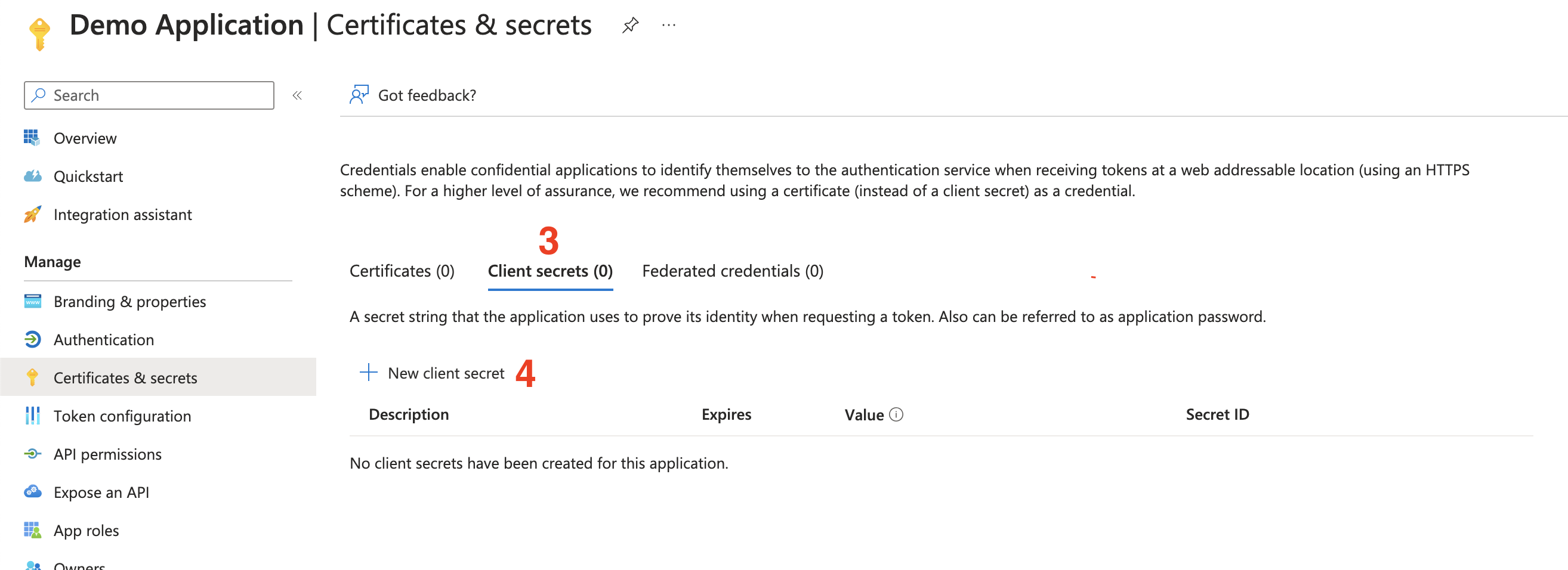
 3. Select the `Client secrets` tab.
Hanko currently does not support using `Certificates`.
4. Select `New client secret`.
3. Select the `Client secrets` tab.
Hanko currently does not support using `Certificates`.
4. Select `New client secret`.
 5. Give your secret a name.
6. Select an expiration date.
Hanko Cloud currently does not provide any means to auto-rotate secrets, so keep the expiration date of your
secret in mind and manually refresh the secret when necessary.
7. Click `Add` to create the secret.
5. Give your secret a name.
6. Select an expiration date.
Hanko Cloud currently does not provide any means to auto-rotate secrets, so keep the expiration date of your
secret in mind and manually refresh the secret when necessary.
7. Click `Add` to create the secret.
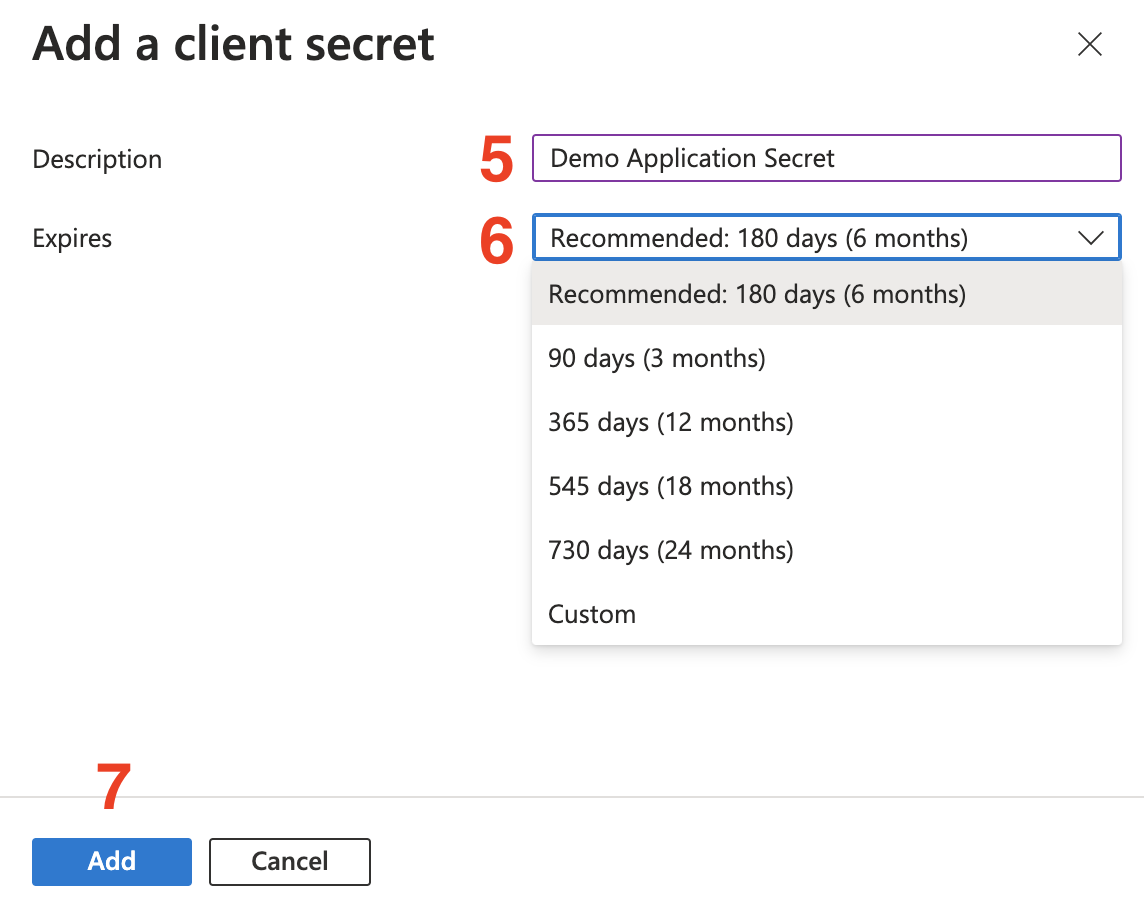 8. After creating the secret, make sure to copy the secret `Value`. You will need this when
[configuring your credentials with Hanko](#configure-credentials-with-hanko).
You can no longer copy the `Value` of the secret after a full page refresh. If you you forget to do so, simply
create another secret and remove the old one.
## Token configuration
Next, we recommend making some additional adjustments to the claims containend in the tokens handed out by Microsoft.
### Add UPN claim
It is possible that users do not have a primary email address set but Hanko requires email addresses to create
accounts. To ensure Hanko is provided with an email address, set the optional `upn`
([UserPrincipalName](https://learn.microsoft.com/en-us/entra/identity/hybrid/connect/plan-connect-userprincipalname#upn-format))
claim. In general, the `upn` domain suffix cannot be changed to an unverified domain and hence the `upn` will be
prioritized over a users' `email` (see the [next section](#protection-against-the-noauth-vulnerbility)). To configure
the claim:
1. Select your app registration and then select the `Token configuration` section.
8. After creating the secret, make sure to copy the secret `Value`. You will need this when
[configuring your credentials with Hanko](#configure-credentials-with-hanko).
You can no longer copy the `Value` of the secret after a full page refresh. If you you forget to do so, simply
create another secret and remove the old one.
## Token configuration
Next, we recommend making some additional adjustments to the claims containend in the tokens handed out by Microsoft.
### Add UPN claim
It is possible that users do not have a primary email address set but Hanko requires email addresses to create
accounts. To ensure Hanko is provided with an email address, set the optional `upn`
([UserPrincipalName](https://learn.microsoft.com/en-us/entra/identity/hybrid/connect/plan-connect-userprincipalname#upn-format))
claim. In general, the `upn` domain suffix cannot be changed to an unverified domain and hence the `upn` will be
prioritized over a users' `email` (see the [next section](#protection-against-the-noauth-vulnerbility)). To configure
the claim:
1. Select your app registration and then select the `Token configuration` section.
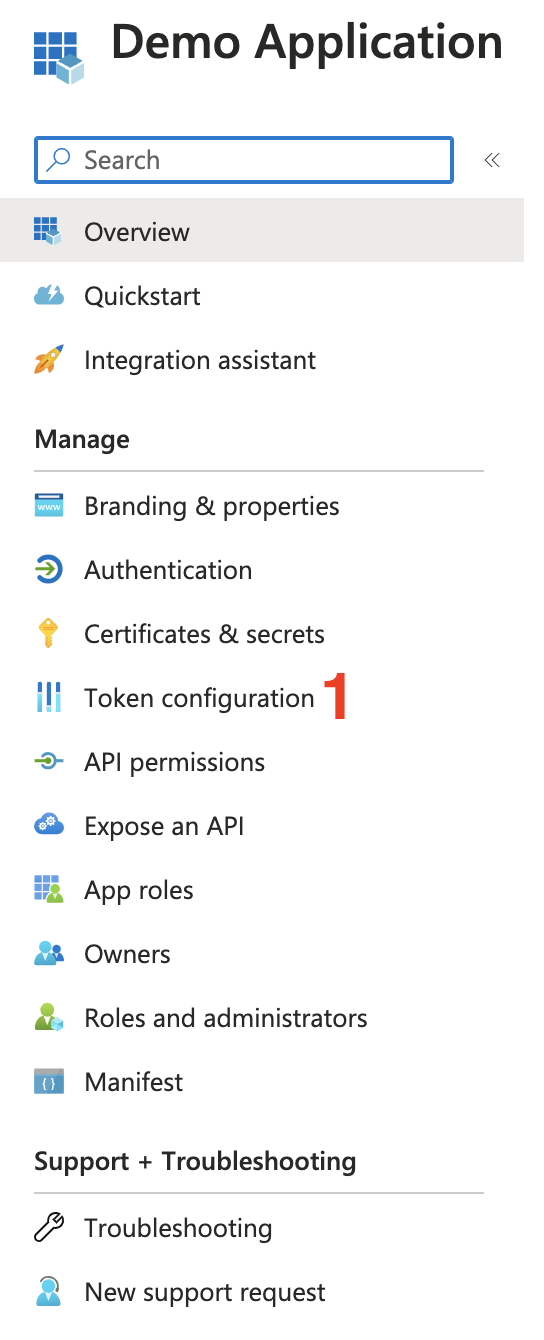 2. Select `Add optional claim`.
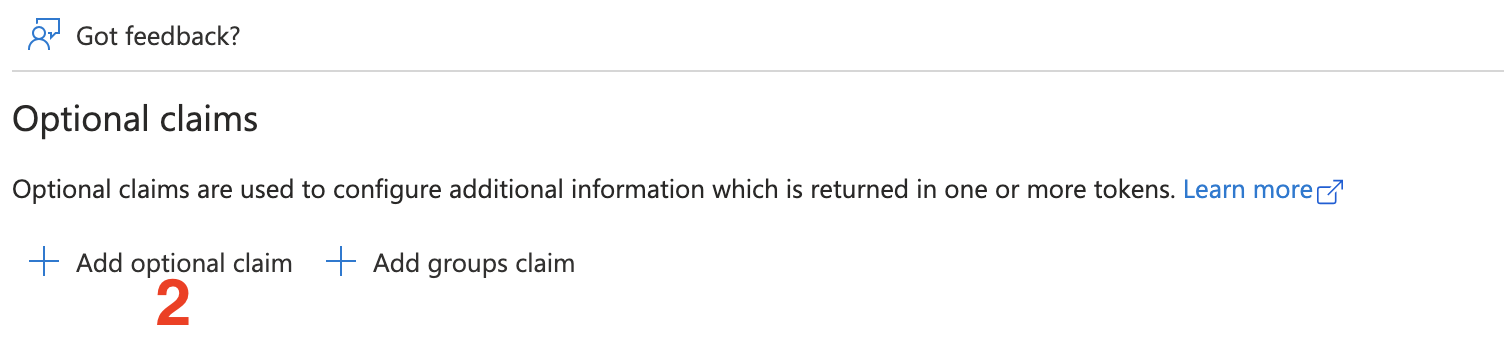 3. Select `ID` as the token type.
4. Tick the `upn` checkbox to select it as an additional optional claim.
5. Click `Add`.
3. Select `ID` as the token type.
4. Tick the `upn` checkbox to select it as an additional optional claim.
5. Click `Add`.
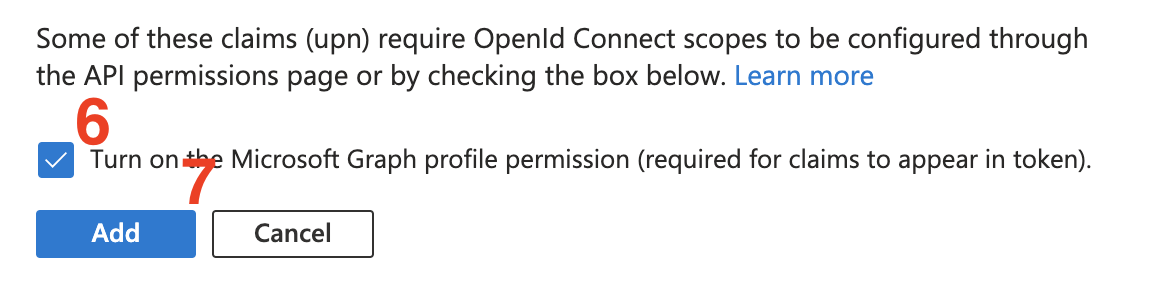
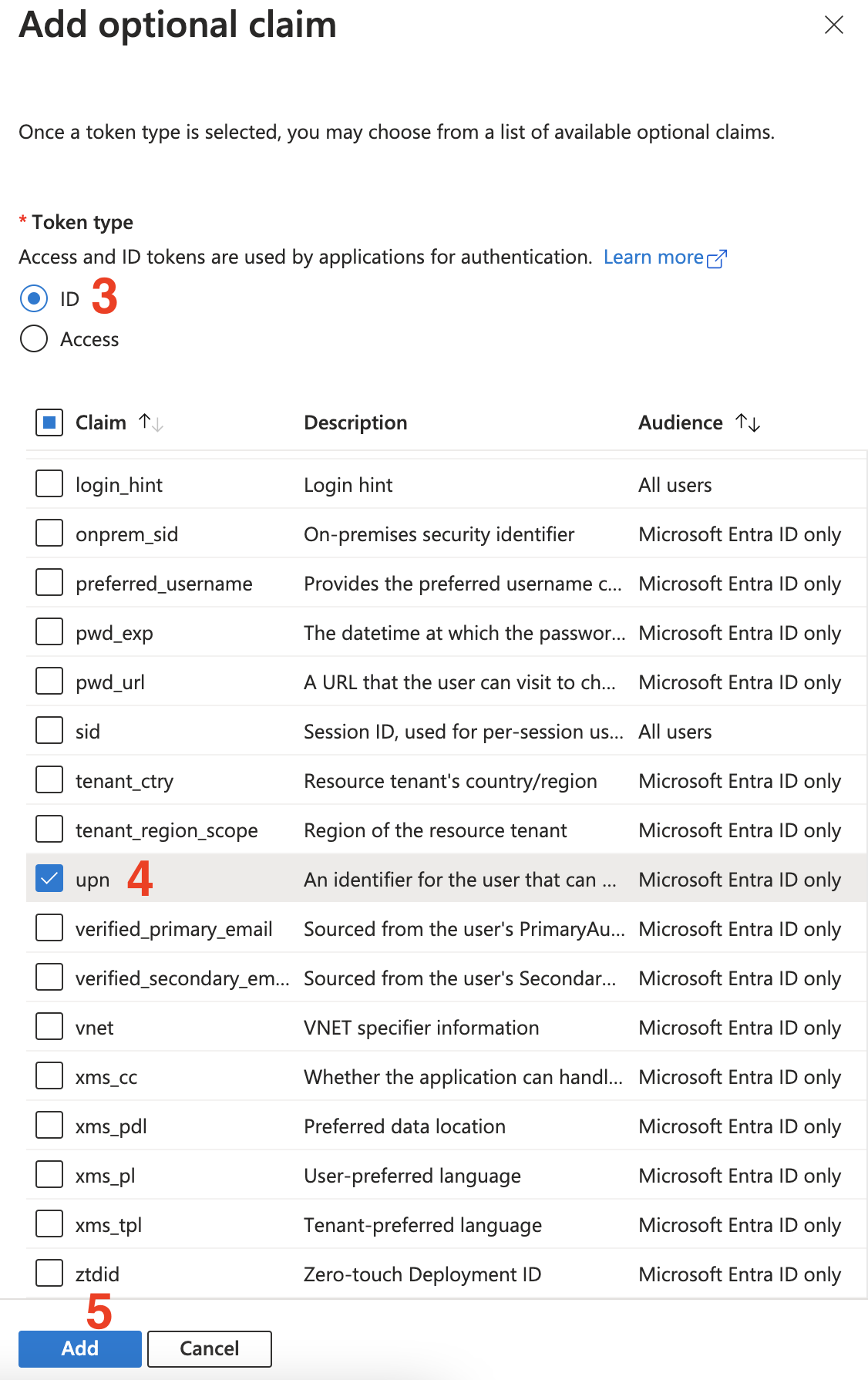 6. Tick the checkbox to set the required Microsoft Graph permissions.
7. Click `Add`.
6. Tick the checkbox to set the required Microsoft Graph permissions.
7. Click `Add`.
 ### Protection against the nOAuth vulnerability
In 2023 Descope [discovered](https://www.descope.com/blog/post/noauth) a vulnerability resulting
from misconfigurations of multi-tenant apps that could potentially lead to account takeovers when linking
accounts with the provider (automatic account linking is not activated by default in Hanko, but may be preferable in many situations). To mitigate this
vulnerability Microsoft provides the following guidance:
1. Configure the `authenticationBehaviors` setting of your application to disallow unverified email domains. This should
be the default case for newly created applications, so no further steps should be required.
If your application was created before the publication of the vulnerability, and the application previously used
unverified emails, you might need to manually alter the `authenticationBehaviours` as described
[here](https://learn.microsoft.com/en-us/entra/identity-platform/migrate-off-email-claim-authorization#how-do-i-protect-my-application-immediately).
2. Use the optional `xms_edov` token claim to check if an email domain owner has been verified. We recommend implementing
this additional security measure in case the tokens do not contain a `upn` (e.g. if the claim has not been configured
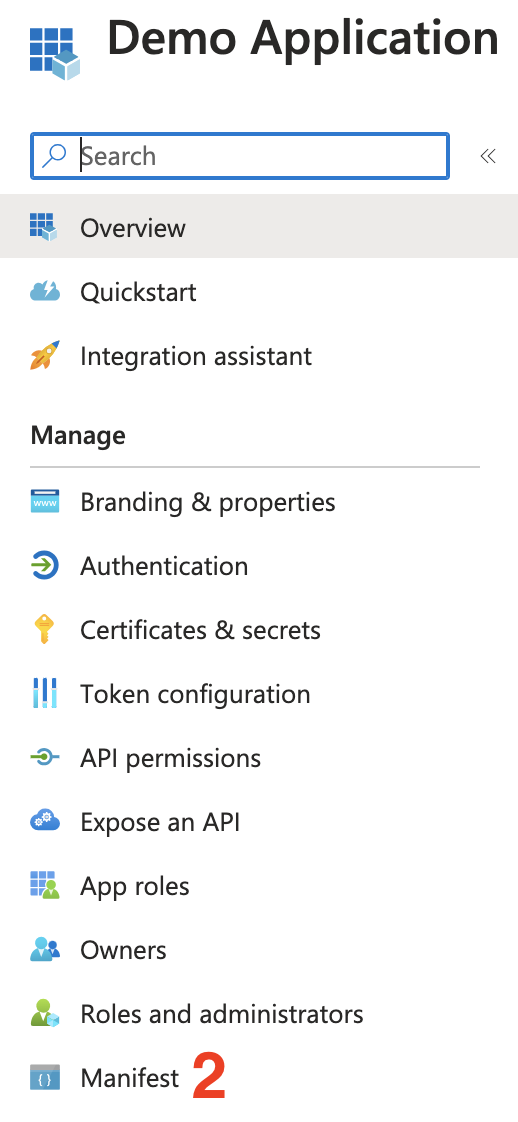
or the configuration has been reverted) and decisions have to be based on a users' `email` property. To do so, first open
your applications `Manifest`.
### Protection against the nOAuth vulnerability
In 2023 Descope [discovered](https://www.descope.com/blog/post/noauth) a vulnerability resulting
from misconfigurations of multi-tenant apps that could potentially lead to account takeovers when linking
accounts with the provider (automatic account linking is not activated by default in Hanko, but may be preferable in many situations). To mitigate this
vulnerability Microsoft provides the following guidance:
1. Configure the `authenticationBehaviors` setting of your application to disallow unverified email domains. This should
be the default case for newly created applications, so no further steps should be required.
If your application was created before the publication of the vulnerability, and the application previously used
unverified emails, you might need to manually alter the `authenticationBehaviours` as described
[here](https://learn.microsoft.com/en-us/entra/identity-platform/migrate-off-email-claim-authorization#how-do-i-protect-my-application-immediately).
2. Use the optional `xms_edov` token claim to check if an email domain owner has been verified. We recommend implementing
this additional security measure in case the tokens do not contain a `upn` (e.g. if the claim has not been configured
or the configuration has been reverted) and decisions have to be based on a users' `email` property. To do so, first open
your applications `Manifest`.
 3. Find the `optionalClaims.idToken` key in the manifest. It should already contain an entry for the `upn` claim you
configured in the [previous step](#add-upn-claim). Add an entry for the `xms_edov` claim to the array (make a backup of
the manifest file, just in case):
```json theme={null}
"optionalClaims": {
"idToken": [
{
"name": "upn",
"source": null,
"essential": false,
"additionalProperties": []
},
{
"name": "xms_edov",
"source": null,
"essential": false,
"additionalProperties": []
}
]
}
```
You may notice that after adding the `xms_edov` claim, it is listed in the `Token configuration` section but it is
marked with a warning icon claiming that *"\[t]his claim is not supported and will not be returned in the token"*.
At the time of writing this does not appear to be correct and the claim is in fact returned in the ID token.
4. Add another optional claim, only this time add the `email` claim. Proceed just as described in
the [previous section](#add-upn-claim) when you added the `upn` claim.
Hanko per default requires email verification. When you configure the `xms_edov` claim, Hanko will reject any attempt at
connecting a Microsoft account if no verified email address is provided.
## Configure credentials with Hanko
1. In the Hanko Cloud Console, navigate to your project `Settings` and select `Identity providers`.
2. Configure the following:
* **Error Redirect URL**: This is the URL target in your frontend the Hanko API redirects to if an error occurs during third
party sign-in. If your frontend [uses the `hanko-elements` web components](#frontend-integration), this URL should be the URL of the
page that embeds the web component such that errors can be processed properly by the web component.
* **Allowed Redirect URL**: This is the URL target in your frontend the Hanko API is allowed to redirect to after third party
authentication was successful. If your frontend [uses the `hanko-elements` web components](#frontend-integration), this URL should be
the URL of the page that embeds the web component.
The allowed redirect URL supports wildcard matching through globbing:
* `https://*.example.com` matches `https://foo.example.com` and `https://bar.example.com`.
* `https://foo.example.com/*` matches URLs like `https://foo.example.com/page1` and `https://foo.example.com/page2`.
* Use \*\* to act as a super-wildcard/match-all.
2. In the `Providers` section, select `Microsoft` and use the `Enable provider` toggle to enable the provider.
3. Provide the `Client ID` and `Client Secret` you obtained in one of the [previous section](#get-your-client-id-and-secret)
in the remaining inputs.
4. Click `Save`.
## Frontend integration
To enable a login with Microsoft in your frontend application we recommend using either our pre-built UI as
provided by the [`@teamhanko/hanko-elements`](https://www.npmjs.com/package/@teamhanko/hanko-elements) package or building a custom UI using
the [`@teamhanko/hanko-frontend-sdk`](https://www.npmjs.com/package/@teamhanko/hanko-frontend-sdk).
We recommend following one of our [quickstart guides](https://docs.hanko.io/quickstarts) to integrate
the `` component from our `@teamhanko/hanko-elements` package in your frontend application .
On successful integration, the component will display a button for signing in with `Microsoft` in the login view
of the component.
Make sure to configure the page the web component is embedded on as your `error redirect URL` as well as an
`allowed redirect URL` (see the [previous step](#configure-credentials-with-hanko)).
On successful authentication with the provider, the backend issues a session cookie and the web component
continues the usual component flow on success. Errors that occur during third party
provider authentication are also picked up and displayed in the web component accordingly.
When building your own UI, you can use the `@teamhanko/hanko-frontend-sdk` to initialize third party sign in.
Create a [`Hanko` client](https://teamhanko.github.io/hanko/jsdoc/hanko-frontend-sdk/Client.html) instance and call the
`thirdParty.auth` method with `microsoft` as your provider and the target URL in your app you want to redirect
to after authentication.
```js theme={null}
import { Hanko } from "@teamhanko/hanko-frontend-sdk";
// you can find the Hanko API URL on the dashboard of your project
// in the Hanko Cloud Console
const hanko = new Hanko("");
async function signInWithMicrosoft() {
try {
// the redirect url argument must be one of the allowed redirect URLs
// configured in the previous step.
await hanko.thirdParty.auth("microsoft", "");
} catch (error) {
// handle error
}
}
```
On successful authentication, the API redirects you to the given redirect URL. The URL query includes a one time
token that must be exchanged for a JWT. Use the `token.validate` method on your client to validate the token:
```js theme={null}
import { Hanko } from "@teamhanko/hanko-frontend-sdk";
const hanko = new Hanko("");
async function onLoad() {
try {
await hanko.token.validate();
} catch (error) {
// handle error
}
// you should now have a JWT cookie set
}
```
On success, the API issues a JWT which is then set by the SDK as a cookie (hanko). All other SDK methods
can now use the cookie to make authenticated requests to the API.
3. Find the `optionalClaims.idToken` key in the manifest. It should already contain an entry for the `upn` claim you
configured in the [previous step](#add-upn-claim). Add an entry for the `xms_edov` claim to the array (make a backup of
the manifest file, just in case):
```json theme={null}
"optionalClaims": {
"idToken": [
{
"name": "upn",
"source": null,
"essential": false,
"additionalProperties": []
},
{
"name": "xms_edov",
"source": null,
"essential": false,
"additionalProperties": []
}
]
}
```
You may notice that after adding the `xms_edov` claim, it is listed in the `Token configuration` section but it is
marked with a warning icon claiming that *"\[t]his claim is not supported and will not be returned in the token"*.
At the time of writing this does not appear to be correct and the claim is in fact returned in the ID token.
4. Add another optional claim, only this time add the `email` claim. Proceed just as described in
the [previous section](#add-upn-claim) when you added the `upn` claim.
Hanko per default requires email verification. When you configure the `xms_edov` claim, Hanko will reject any attempt at
connecting a Microsoft account if no verified email address is provided.
## Configure credentials with Hanko
1. In the Hanko Cloud Console, navigate to your project `Settings` and select `Identity providers`.
2. Configure the following:
* **Error Redirect URL**: This is the URL target in your frontend the Hanko API redirects to if an error occurs during third
party sign-in. If your frontend [uses the `hanko-elements` web components](#frontend-integration), this URL should be the URL of the
page that embeds the web component such that errors can be processed properly by the web component.
* **Allowed Redirect URL**: This is the URL target in your frontend the Hanko API is allowed to redirect to after third party
authentication was successful. If your frontend [uses the `hanko-elements` web components](#frontend-integration), this URL should be
the URL of the page that embeds the web component.
The allowed redirect URL supports wildcard matching through globbing:
* `https://*.example.com` matches `https://foo.example.com` and `https://bar.example.com`.
* `https://foo.example.com/*` matches URLs like `https://foo.example.com/page1` and `https://foo.example.com/page2`.
* Use \*\* to act as a super-wildcard/match-all.
2. In the `Providers` section, select `Microsoft` and use the `Enable provider` toggle to enable the provider.
3. Provide the `Client ID` and `Client Secret` you obtained in one of the [previous section](#get-your-client-id-and-secret)
in the remaining inputs.
4. Click `Save`.
## Frontend integration
To enable a login with Microsoft in your frontend application we recommend using either our pre-built UI as
provided by the [`@teamhanko/hanko-elements`](https://www.npmjs.com/package/@teamhanko/hanko-elements) package or building a custom UI using
the [`@teamhanko/hanko-frontend-sdk`](https://www.npmjs.com/package/@teamhanko/hanko-frontend-sdk).
We recommend following one of our [quickstart guides](https://docs.hanko.io/quickstarts) to integrate
the `` component from our `@teamhanko/hanko-elements` package in your frontend application .
On successful integration, the component will display a button for signing in with `Microsoft` in the login view
of the component.
Make sure to configure the page the web component is embedded on as your `error redirect URL` as well as an
`allowed redirect URL` (see the [previous step](#configure-credentials-with-hanko)).
On successful authentication with the provider, the backend issues a session cookie and the web component
continues the usual component flow on success. Errors that occur during third party
provider authentication are also picked up and displayed in the web component accordingly.
When building your own UI, you can use the `@teamhanko/hanko-frontend-sdk` to initialize third party sign in.
Create a [`Hanko` client](https://teamhanko.github.io/hanko/jsdoc/hanko-frontend-sdk/Client.html) instance and call the
`thirdParty.auth` method with `microsoft` as your provider and the target URL in your app you want to redirect
to after authentication.
```js theme={null}
import { Hanko } from "@teamhanko/hanko-frontend-sdk";
// you can find the Hanko API URL on the dashboard of your project
// in the Hanko Cloud Console
const hanko = new Hanko("");
async function signInWithMicrosoft() {
try {
// the redirect url argument must be one of the allowed redirect URLs
// configured in the previous step.
await hanko.thirdParty.auth("microsoft", "");
} catch (error) {
// handle error
}
}
```
On successful authentication, the API redirects you to the given redirect URL. The URL query includes a one time
token that must be exchanged for a JWT. Use the `token.validate` method on your client to validate the token:
```js theme={null}
import { Hanko } from "@teamhanko/hanko-frontend-sdk";
const hanko = new Hanko("");
async function onLoad() {
try {
await hanko.token.validate();
} catch (error) {
// handle error
}
// you should now have a JWT cookie set
}
```
On success, the API issues a JWT which is then set by the SDK as a cookie (hanko). All other SDK methods
can now use the cookie to make authenticated requests to the API.