> ## Documentation Index
> Fetch the complete documentation index at: https://docs.hanko.io/llms.txt
> Use this file to discover all available pages before exploring further.
# Hanko Elements Login component guide
> A Web Component that handles user login.
**Hanko Elements Login Component Guide**:
**About Hanko**:
Hanko is a modern open source authentication solution and the fastest way you integrate passkeys, 2FA, SSO, and more—with full control over your data. Move between self-hosted and Hanko Cloud anytime. No lock-in. Just Auth how it should be: secure, user friendly, and fully yours.
**What This Guide Covers**: This guide demonstrates how to implement the `` web component, which provides a dedicated login interface for existing users. You'll learn how to integrate this component for applications that require separate login and registration flows or controlled-access scenarios.
**Key Technologies**:
* Hanko Elements
* Web Components
* JavaScript/TypeScript
* React, Vue, Svelte
* Next.js, Nuxt, SvelteKit
* Passkeys
* OAuth SSO
* 2FA authentication
* Session management
**Prerequisites**:
* Basic knowledge of frontend development, HTML/JavaScript, your chosen framework
* Active Hanko account with API access
**Tasks You'll Complete**:
* Install and register the Hanko Elements package
* Configure the `` component for login-only flows
* Implement the component across different frameworks (React, Vue, Svelte)
* Set up event handlers for successful login events
* Configure component attributes for prefilled values and language settings
* Handle authentication state changes and navigation
## Use case
The `` component is designed for dedicated login interfaces and intentionally excludes registration functionality, unlike ``. This makes it ideal for controlled-access applications such as enterprise systems, internal tools, or invitation-based platforms where user registration needs to be restricted.
If you want to Combine Login and Register on the same page: \
[try out the`` component](/guides/hanko-elements/auth-component).
If you want to create a dedicated Registration page: \
[try out the `` component](/guides/hanko-elements/register-component) .
## Features
| | |
| ------------- | ------------------------------------------------------------------------------------------- |
| **Login** | Allows users to securely log in to their existing accounts. |
| **Passkeys** | Enables passwordless login with modern device credentials. |
| **Passcodes** | Useful for email-based login and verification workflows. |
| **2FA** | Users can use a TOTP app or security keys. |
| **OAuth SSO** | Allows users to log in using third-party identity providers (e.g., Google, Apple). |
| **SAML SSO** | Allows users to log in using SAML identity providers (e.g., Entra, Okta, Google Workspace). |
| **Passwords** | Supports traditional password-based login for broader accessibility. |
## Usage
### Markup
```html theme={null}
```
### Attributes
| Name | Description |
| -------------------- | -------------------------------------------------------------- |
| `prefilled-email` | Used to prefill the email input field |
| `prefilled-username` | Used to prefill the username input field |
| `lang` | Used to specify the language of the content within the element |
### Adding `` component
The following examples show how to integrate the `` component in different full-stack and frontend frameworks.
#### Full stack
```jsx components/HankoLogin.tsx theme={null}
"use client"
import { useEffect } from "react";
import { register } from "@teamhanko/hanko-elements";
const hankoApi = process.env.NEXT_PUBLIC_HANKO_API_URL;
export default function HankoLogin() {
useEffect(() => {
register(hankoApi)
.catch((error) => {
// handle error
});
}, []);
return (
);
}
```
```jsx components/HankoLogin.tsx theme={null}
import { useEffect } from "react";
import { register } from "@teamhanko/hanko-elements";
const hankoApi = process.env.NEXT_PUBLIC_HANKO_API_URL;
export default function HankoLogin() {
useEffect(() => {
register(hankoApi)
.catch((error) => {
// handle error
});
}, []);
return (
);
}
```
```html login.vue theme={null}
```
```html HankoLogin.svelte theme={null}
```
#### Frontend
```jsx components/HankoLogin.tsx theme={null}
import { useEffect } from "react";
import { register } from "@teamhanko/hanko-elements";
const hankoApi = process.env.REACT_APP_HANKO_API_URL;
export default function HankoLogin() {
useEffect(() => {
register(hankoApi).catch((error) => {
// handle error
});
}, []);
return ;
}
```
```jsx components/HankoLogin.tsx theme={null}
import { useEffect } from "react";
import { register } from "@teamhanko/hanko-elements";
const hankoApi = import.meta.env.VITE_HANKO_API_URL;
export default function HankoLogin() {
useEffect(() => {
register(hankoApi).catch((error) => {
// handle error
});
}, []);
return ;
}
```
```html HankoAuth.vue theme={null}
```
```html HankoLogin.svelte theme={null}
```
```html login.html theme={null}
```
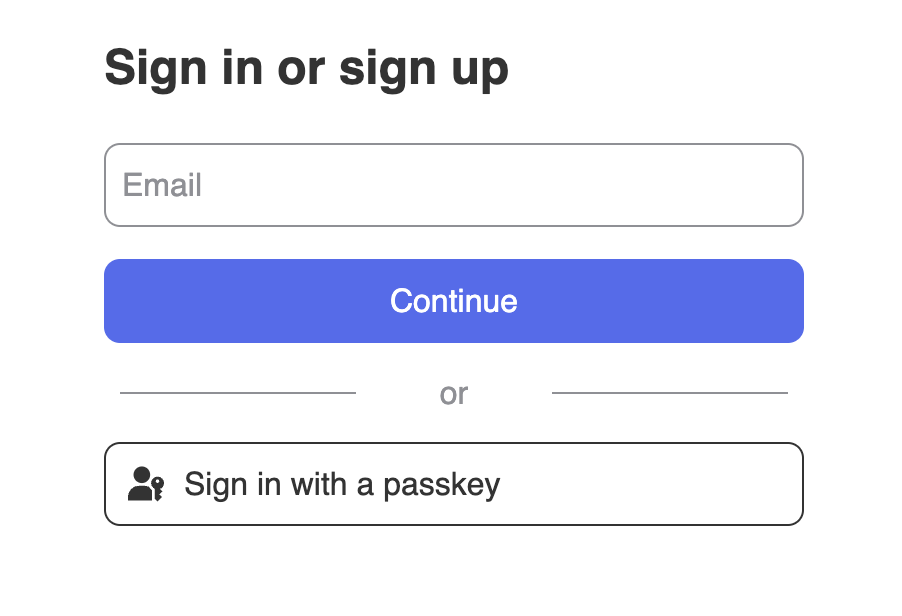
You should see an interface similar to this 👇
 For more detailed instructions on integrating `` component with your favorite frameworks, navigate to [quickstart guides](/quickstarts/fullstack).