> ## Documentation Index
> Fetch the complete documentation index at: https://docs.hanko.io/llms.txt
> Use this file to discover all available pages before exploring further.
# Set up SAML SSO with Okta
> Learn how to set up enterprise connections in Hanko for customers using Okta as SAML identity provider.
**Hanko Okta SAML Integration Guide**:
**About Hanko**:
Hanko is a modern open source authentication solution and the fastest way you integrate passkeys, 2FA, SSO, and more—with full control over your data. Move between self-hosted and Hanko Cloud anytime. No lock-in. Just Auth how it should be: secure, user friendly, and fully yours.
**What This Guide Covers**: This guide demonstrates how to configure Okta as a SAML identity provider for your Hanko project, enabling secure single sign-on authentication for enterprise users managed by Okta.
**Key Technologies**:
* SAML 2.0
* XML digital signatures
* Okta identity provider
* SAML assertions
**Prerequisites**:
* Active Okta account with admin access
* Access to Okta Administrative Console
* Hanko Cloud project
* Basic understanding of SAML authentication protocols
**Tasks You'll Complete**:
* Create SAML app integration in Okta
* Configure single sign-on URL and audience URI
* Set up attribute statements for email mapping
* Obtain metadata URL from Okta application
* Assign users to the application
* Create enterprise connection in Hanko Cloud
* Test integration using IdP-initiated flow
## Prerequisites
You need your project's SAML Assertion Consumer Service (ACS) URL and the Service Provider (SP) Entity ID.
### Service Provider Entity ID
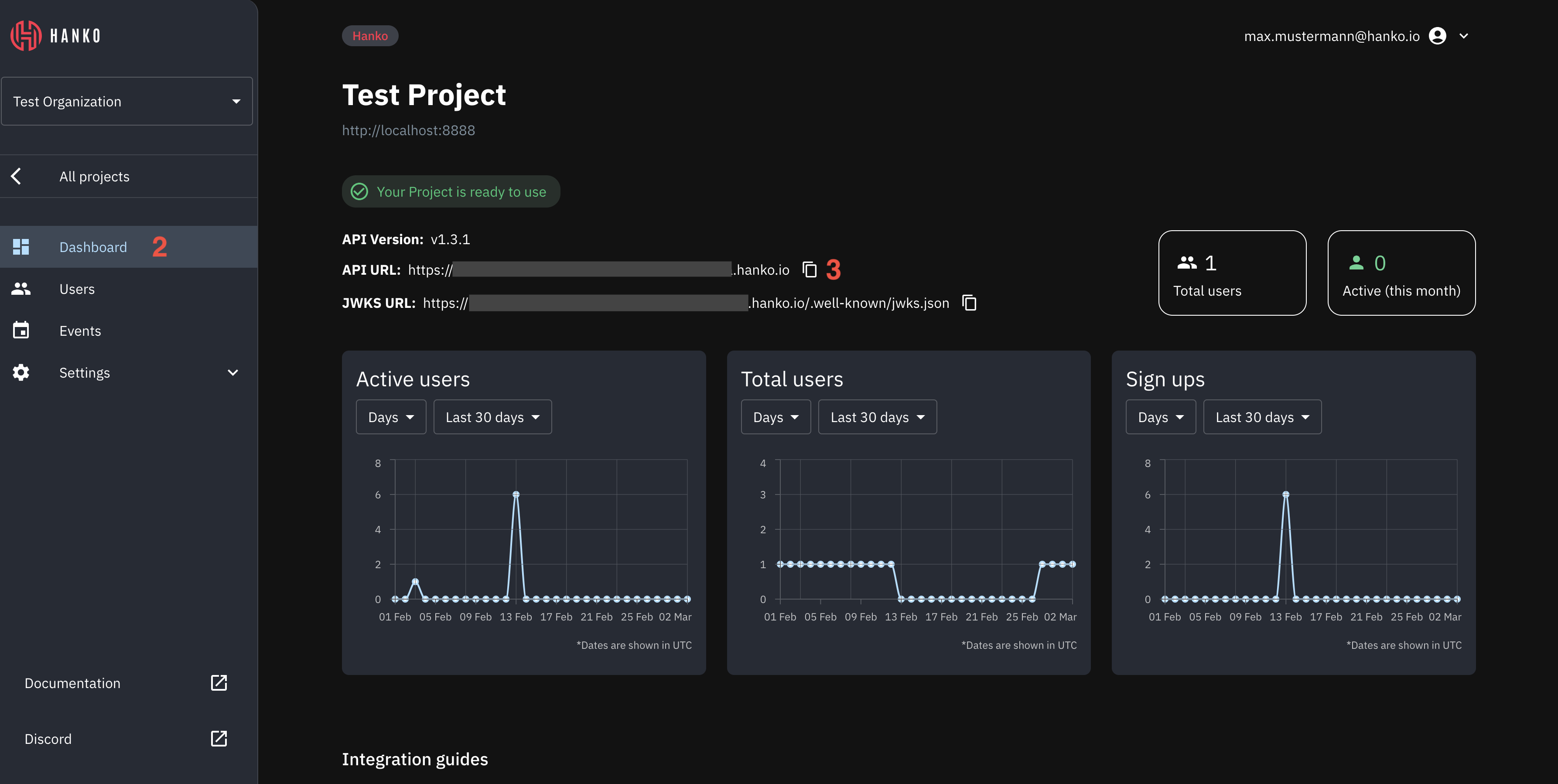
The SP Entity ID for your Hanko project is equal to the API URL of your project.
To find the API URL for your project:
1. Log in to [Hanko Cloud](https://cloud.hanko.io) and select your project.
2. Navigate to `Dashboard`.
3. Copy and save the `API URL`.
 ### Service Provider ACS URL
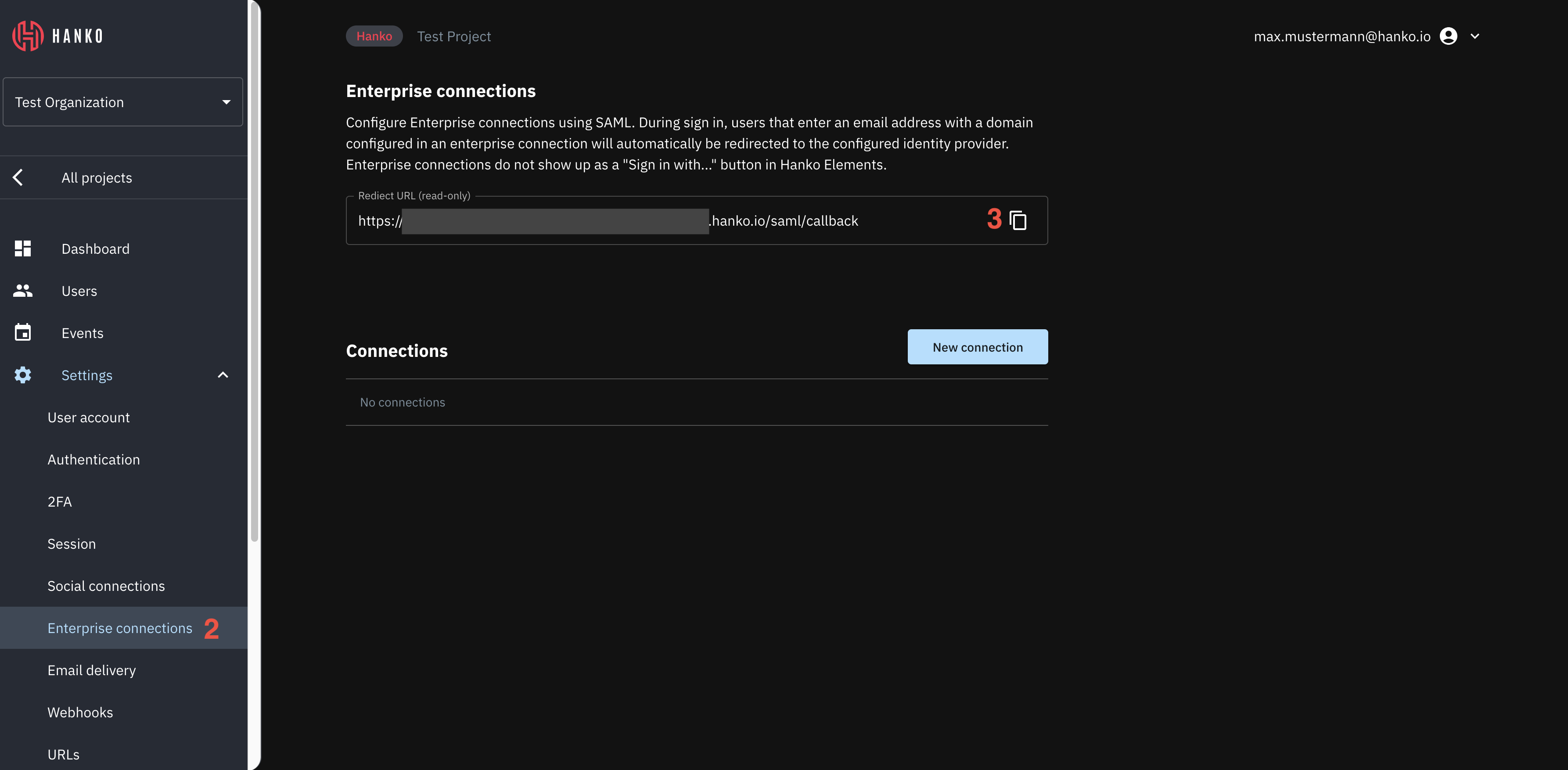
To find the Assertion Consumer Service (ACS) URL for your project:
1. Log in to [Hanko Cloud](https://cloud.hanko.io) and select your project.
2. Navigate to `Settings > Enterprise connections`.
3. Under `Enterprise connections` find the `Redirect URL` panel.
4. Copy and save the URL.
### Service Provider ACS URL
To find the Assertion Consumer Service (ACS) URL for your project:
1. Log in to [Hanko Cloud](https://cloud.hanko.io) and select your project.
2. Navigate to `Settings > Enterprise connections`.
3. Under `Enterprise connections` find the `Redirect URL` panel.
4. Copy and save the URL.
 ## Create an Okta application
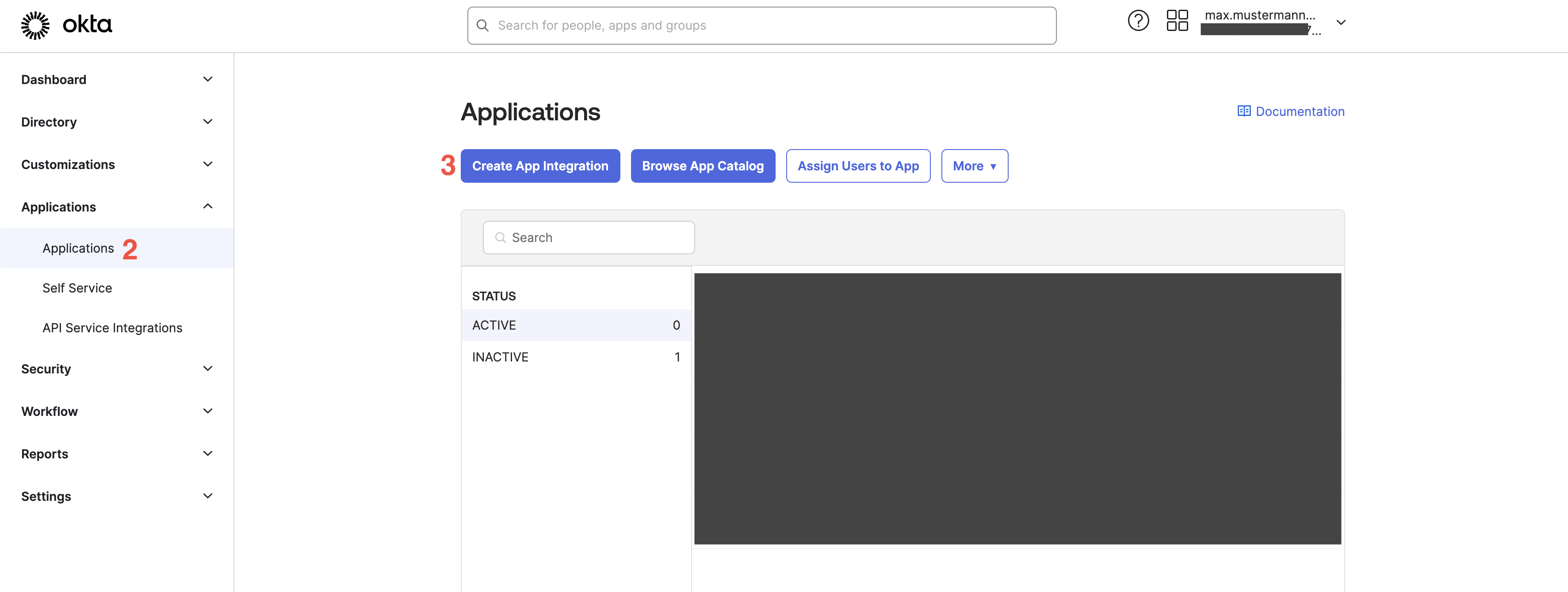
1. Create an account at [Okta](https://okta.com). Once registered, access the Okta Administration
console at `https://-admin.okta.com`.
2. Select `Applications > Applications` in the left sidebar.
3. Click `Create App Integration`.
## Create an Okta application
1. Create an account at [Okta](https://okta.com). Once registered, access the Okta Administration
console at `https://-admin.okta.com`.
2. Select `Applications > Applications` in the left sidebar.
3. Click `Create App Integration`.
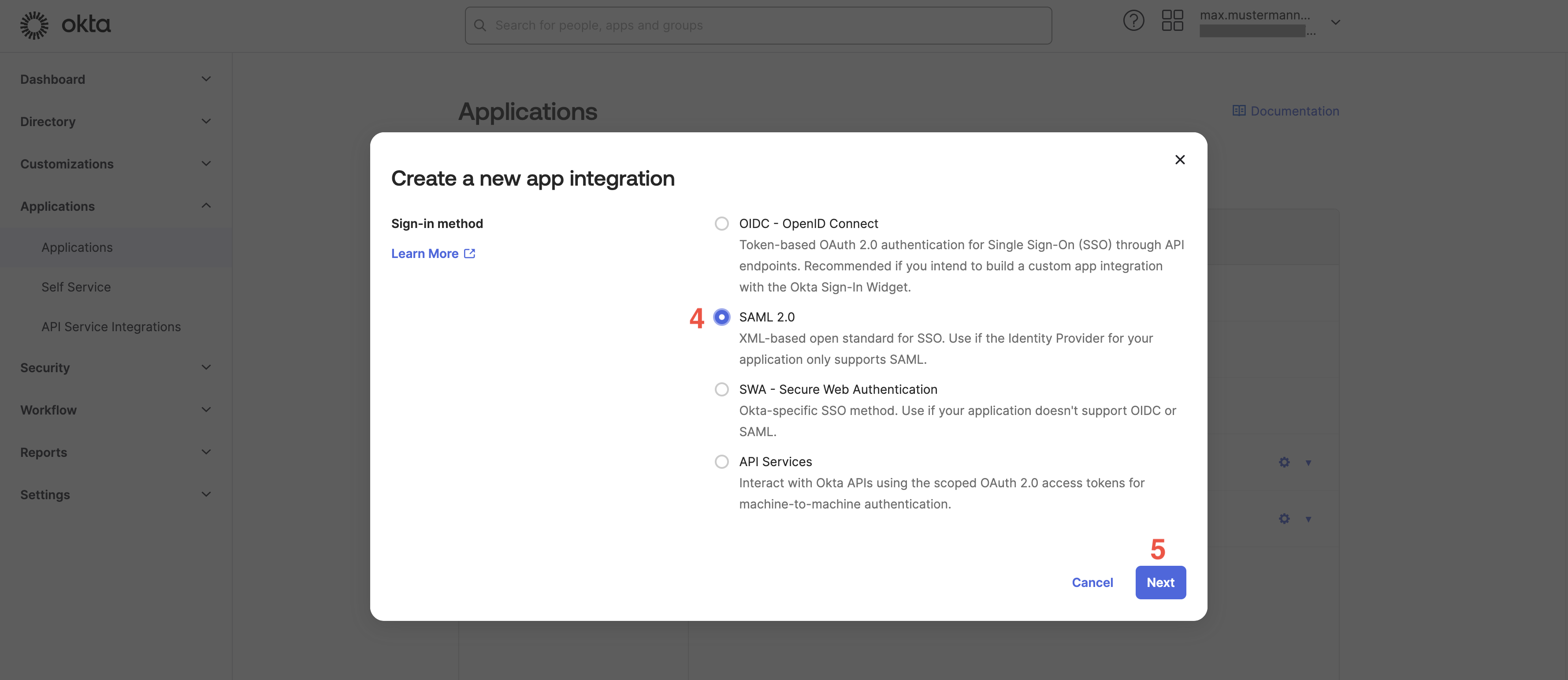
 4. In the shown modal select `SAML` as the sign-in method.
5. Click `Next`.
4. In the shown modal select `SAML` as the sign-in method.
5. Click `Next`.
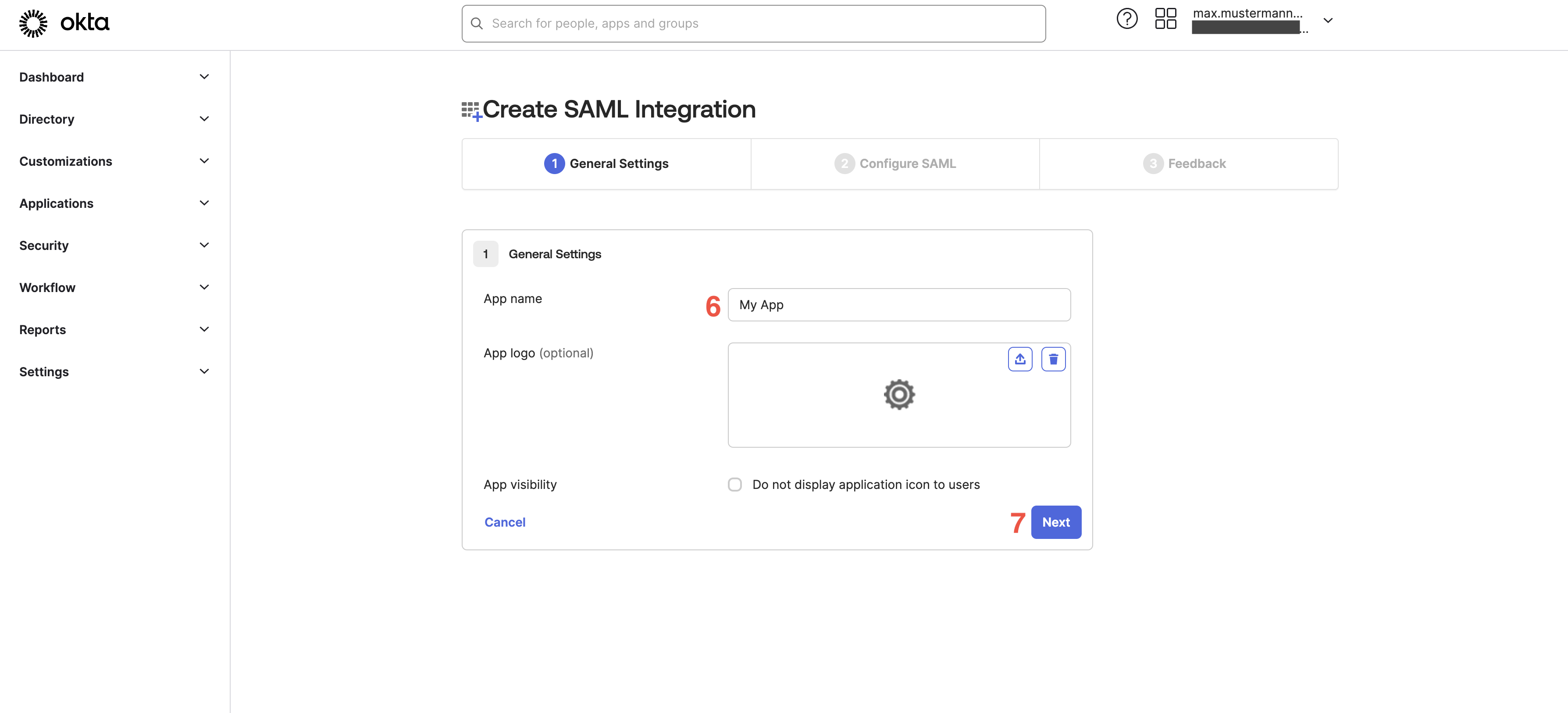
 6. In the `Create SAML Integration` wizard, provide an `App name`.
7. Click `Next`.
6. In the `Create SAML Integration` wizard, provide an `App name`.
7. Click `Next`.
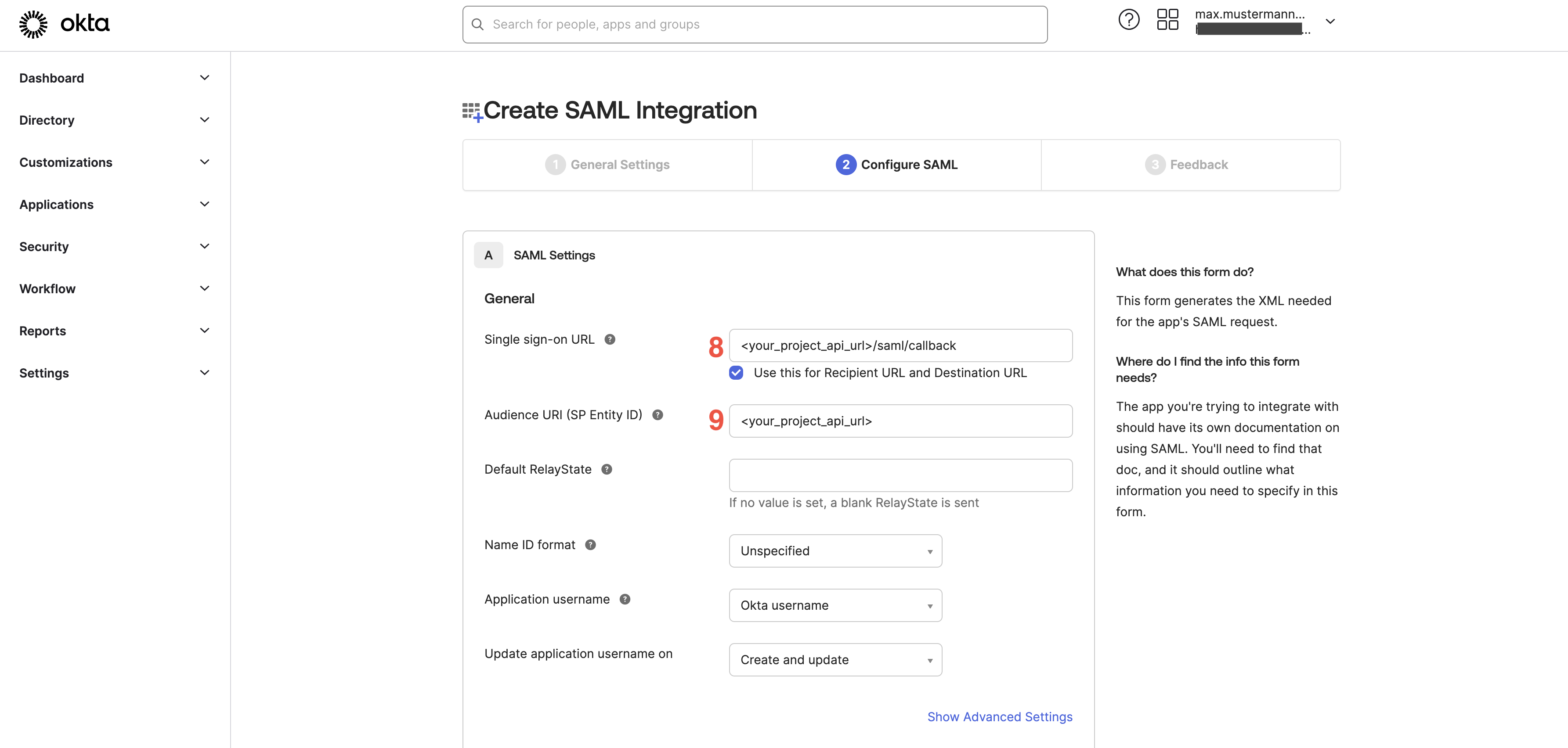
 8. Under `Single sign-on URL` enter your ACS URL
(see [Prerequisites - Service Provider ACS URL](#service-provider-acs-url)).
9. Under `Audience URI (SP Entity ID)` enter you project API URL
(see [Prerequisites - Service Provider Entity ID](#service-provider-entity-id)).
8. Under `Single sign-on URL` enter your ACS URL
(see [Prerequisites - Service Provider ACS URL](#service-provider-acs-url)).
9. Under `Audience URI (SP Entity ID)` enter you project API URL
(see [Prerequisites - Service Provider Entity ID](#service-provider-entity-id)).
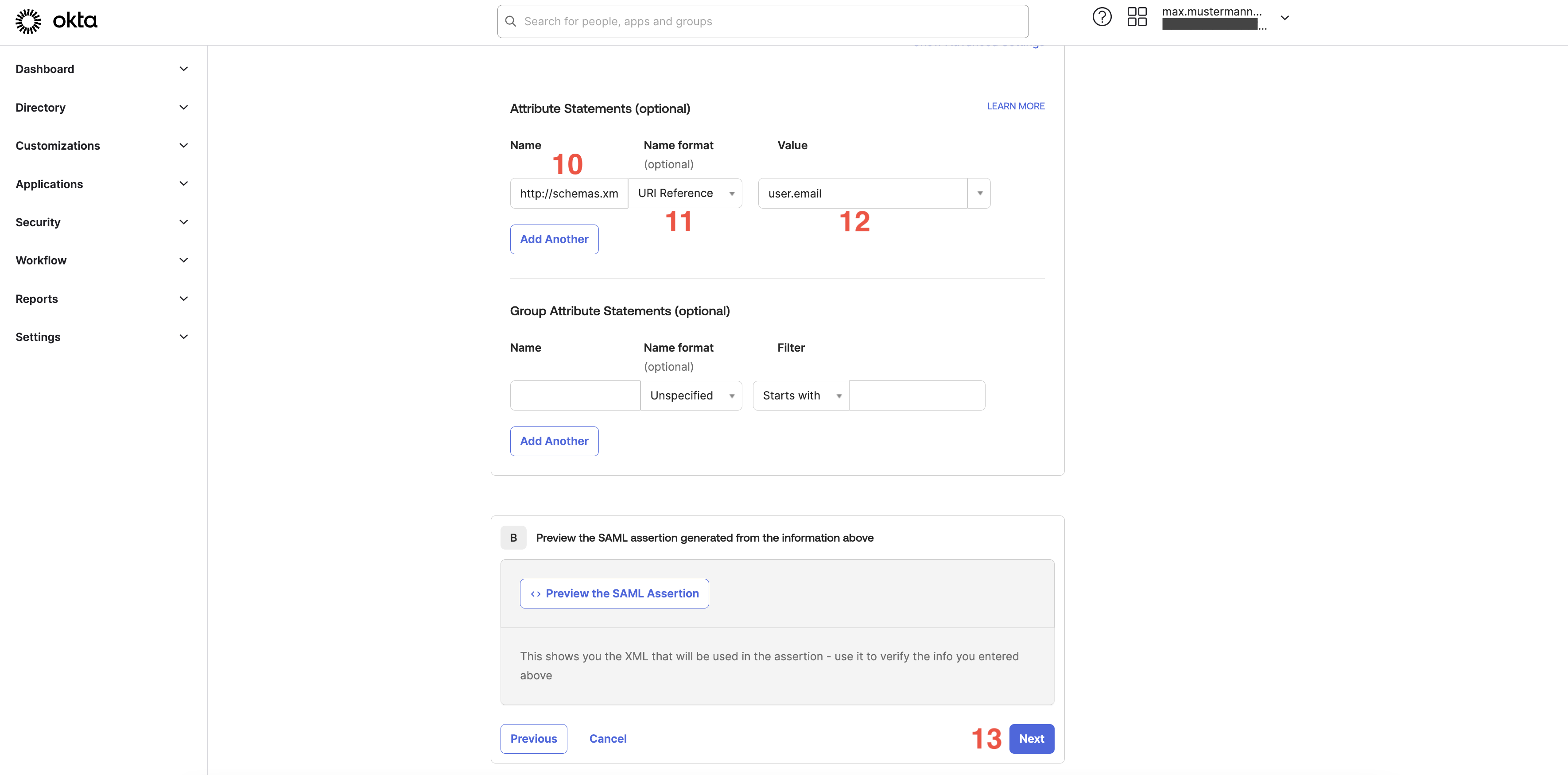
 10. Scroll down and find the `Attribute statements` panel. Under `Name`
enter `http://schemas.xmlsoap.org/ws/2005/05/identity/claims/emailaddress`.
11. Under `Name format` select `URI Reference`
12. Under `Value` select `user.email`.
13. Click `Next`.
10. Scroll down and find the `Attribute statements` panel. Under `Name`
enter `http://schemas.xmlsoap.org/ws/2005/05/identity/claims/emailaddress`.
11. Under `Name format` select `URI Reference`
12. Under `Value` select `user.email`.
13. Click `Next`.
 14. Provide feedback on the next screen of the configuration wizard and click `Finish`.
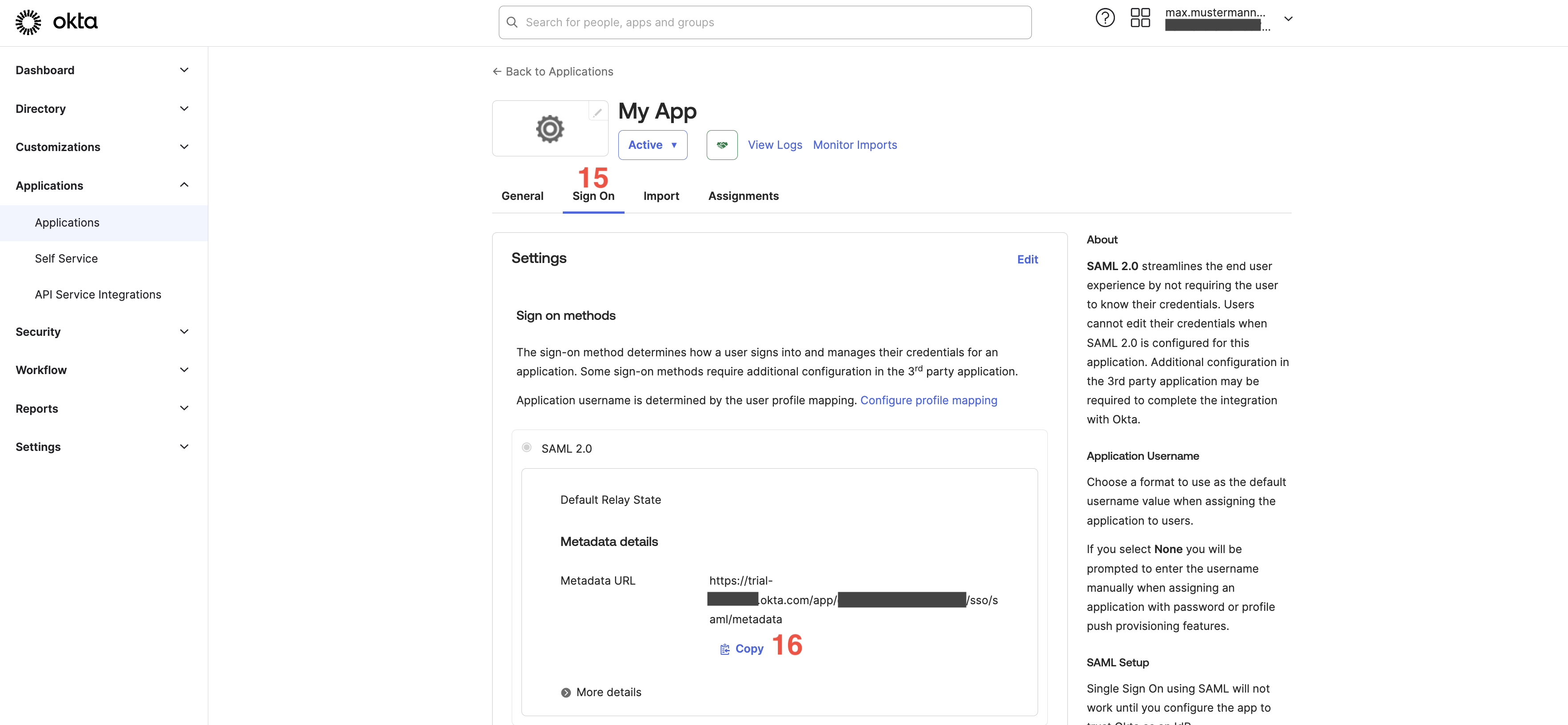
15. Select `Sign On` in the top tab navigation.
16. In the `Settings > Sign-on methods > SAML 2.0` panel find the `Metadata URL` in the `Metadata details` and copy it.
You need this for configuring the enterprise connection with Hanko.
14. Provide feedback on the next screen of the configuration wizard and click `Finish`.
15. Select `Sign On` in the top tab navigation.
16. In the `Settings > Sign-on methods > SAML 2.0` panel find the `Metadata URL` in the `Metadata details` and copy it.
You need this for configuring the enterprise connection with Hanko.
 ### Assign users to your application
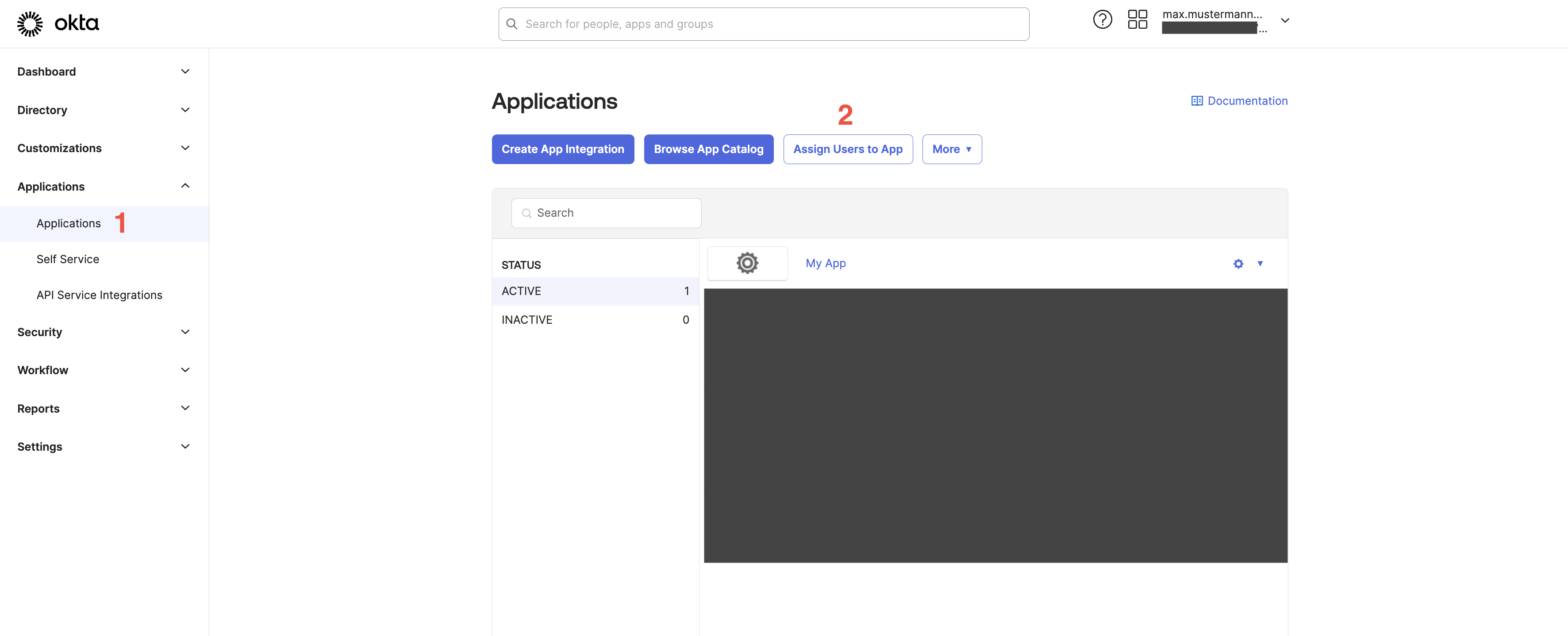
To enable users to log in, you need to assign users to the application. To assign users:
1. Select `Applications > Applications` in the left sidebar.
2. Click `Assign Users to Apps`.
### Assign users to your application
To enable users to log in, you need to assign users to the application. To assign users:
1. Select `Applications > Applications` in the left sidebar.
2. Click `Assign Users to Apps`.
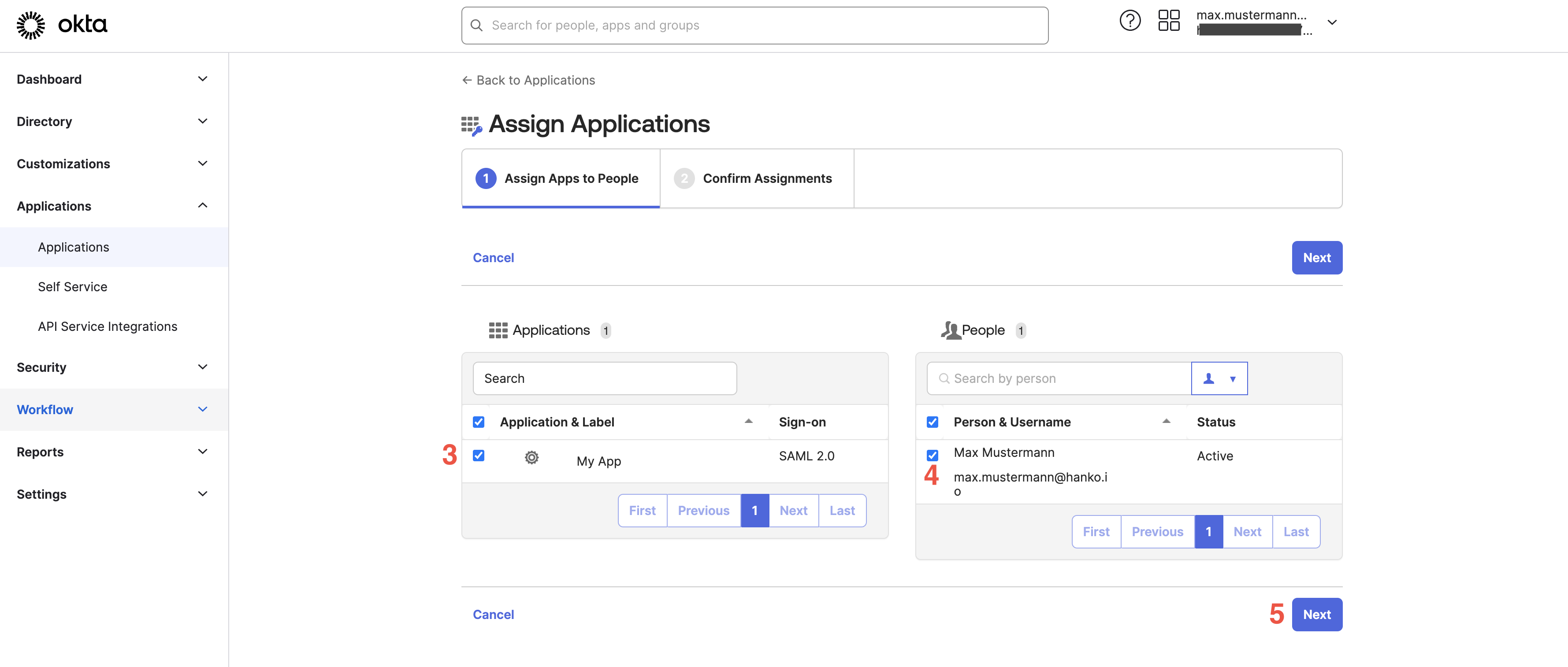
 3. Select the app you want to assign users to.
4. Select users you want to assign to the app.
5. Click `Next`.
3. Select the app you want to assign users to.
4. Select users you want to assign to the app.
5. Click `Next`.
 6. Review your assignments and click `Confirm assignments`.
## Configure an enterprise connection
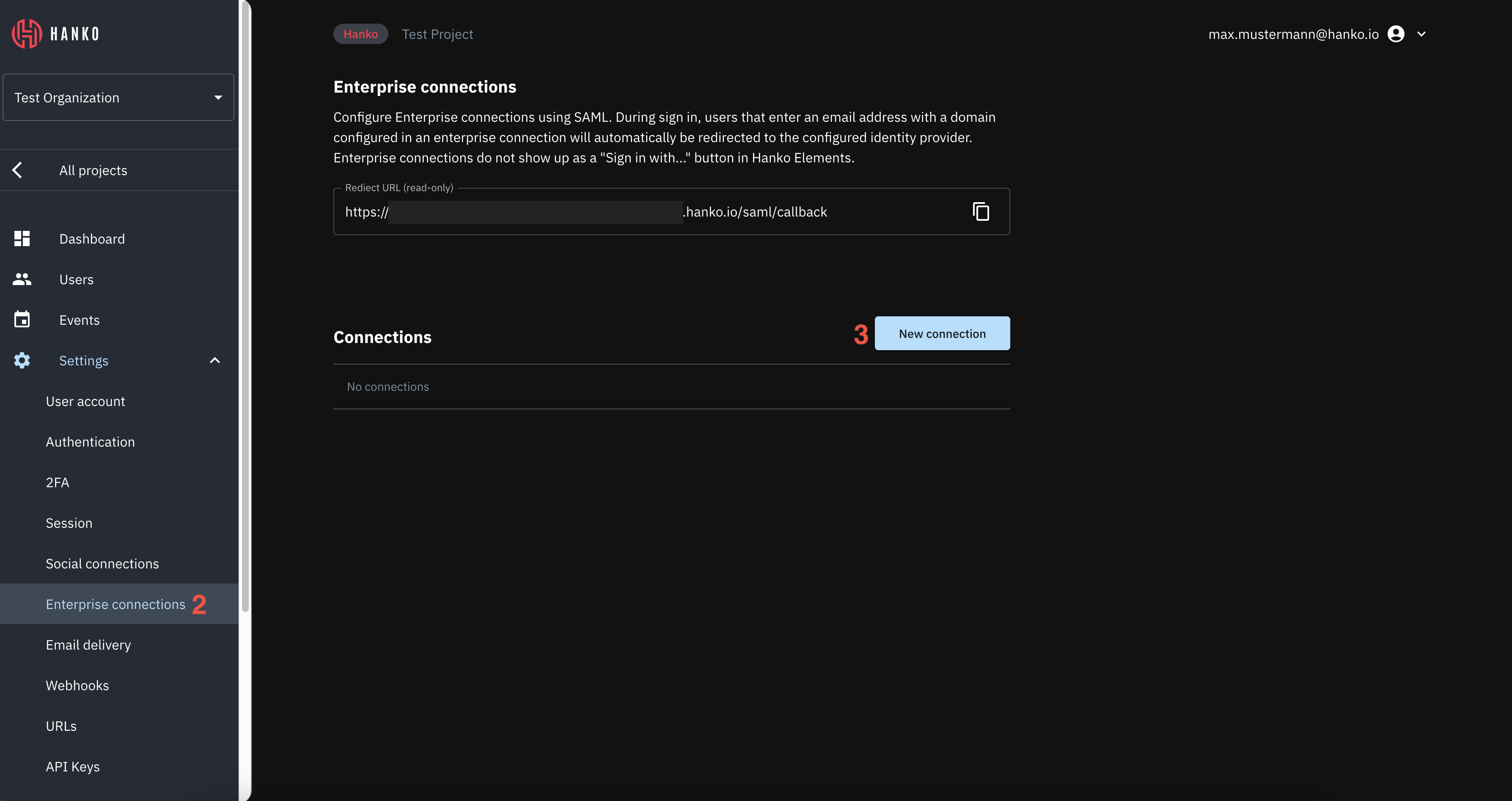
1. Log in to [Hanko Cloud](https://cloud.hanko.io) and select your project.
2. Navigate to `Settings > Enterprise connections`.
3. Under `Connections`, click `New connection`.
6. Review your assignments and click `Confirm assignments`.
## Configure an enterprise connection
1. Log in to [Hanko Cloud](https://cloud.hanko.io) and select your project.
2. Navigate to `Settings > Enterprise connections`.
3. Under `Connections`, click `New connection`.
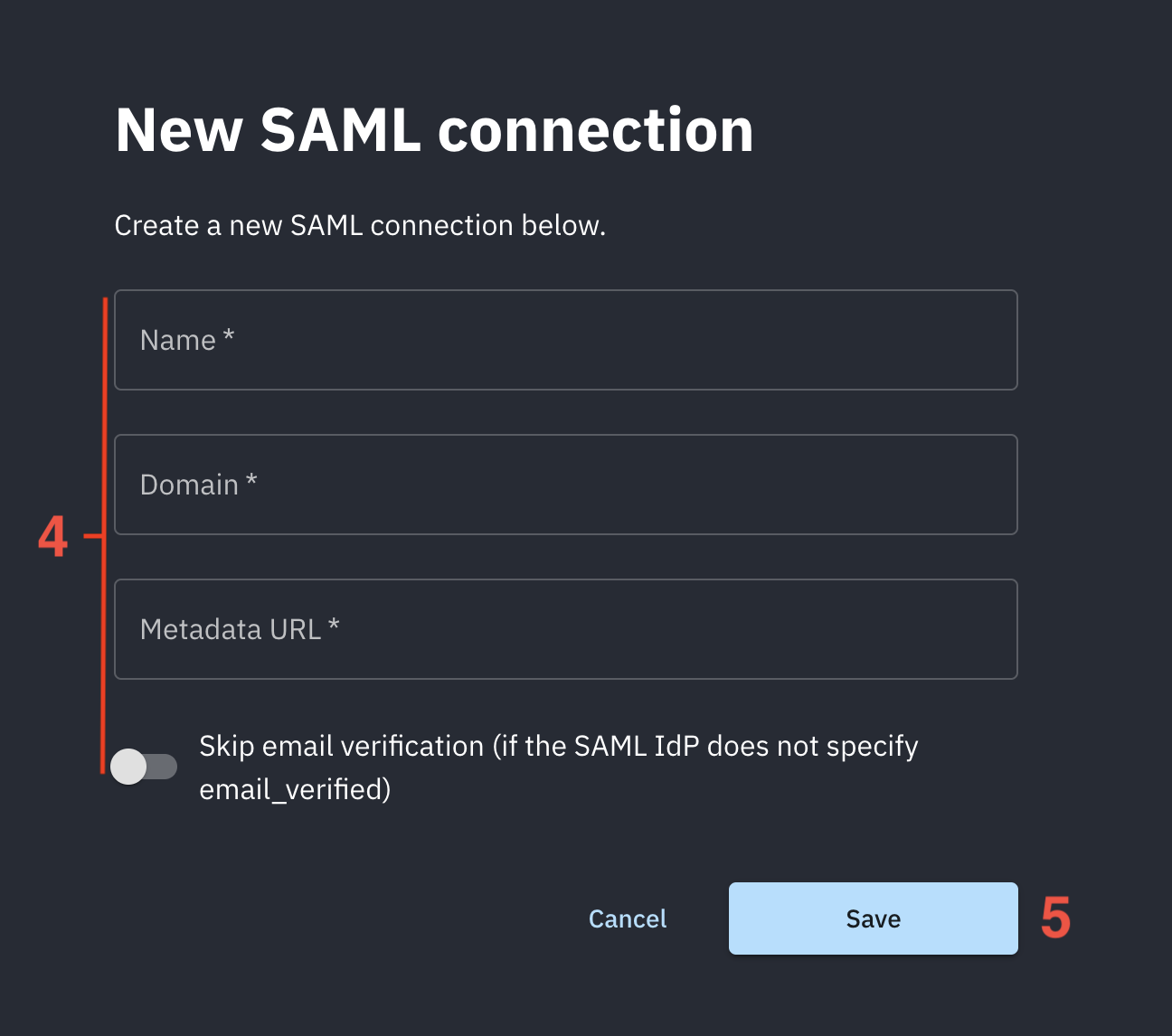
 4. In the shown modal provide the following data:
* A `Name` for the connection.
* A `Domain` for the connection. When users authenticate via SAML SSO, the domain of the email
address provided as an identifier at the start of an authentication flow must match the domain configured here.
* A `Metadata URL`. This is the URL you copied in step 16 in [Create an Okta application](#create-an-okta-application).
* Select whether you want skip email verification for this provider.
5. Click `Save` to create the connection.
4. In the shown modal provide the following data:
* A `Name` for the connection.
* A `Domain` for the connection. When users authenticate via SAML SSO, the domain of the email
address provided as an identifier at the start of an authentication flow must match the domain configured here.
* A `Metadata URL`. This is the URL you copied in step 16 in [Create an Okta application](#create-an-okta-application).
* Select whether you want skip email verification for this provider.
5. Click `Save` to create the connection.
 ## Testing your integration
To test your integration via [IdP-initiated](/guides/enterprise-sso/introduction#identity-provider-initiated-sso)
flow:
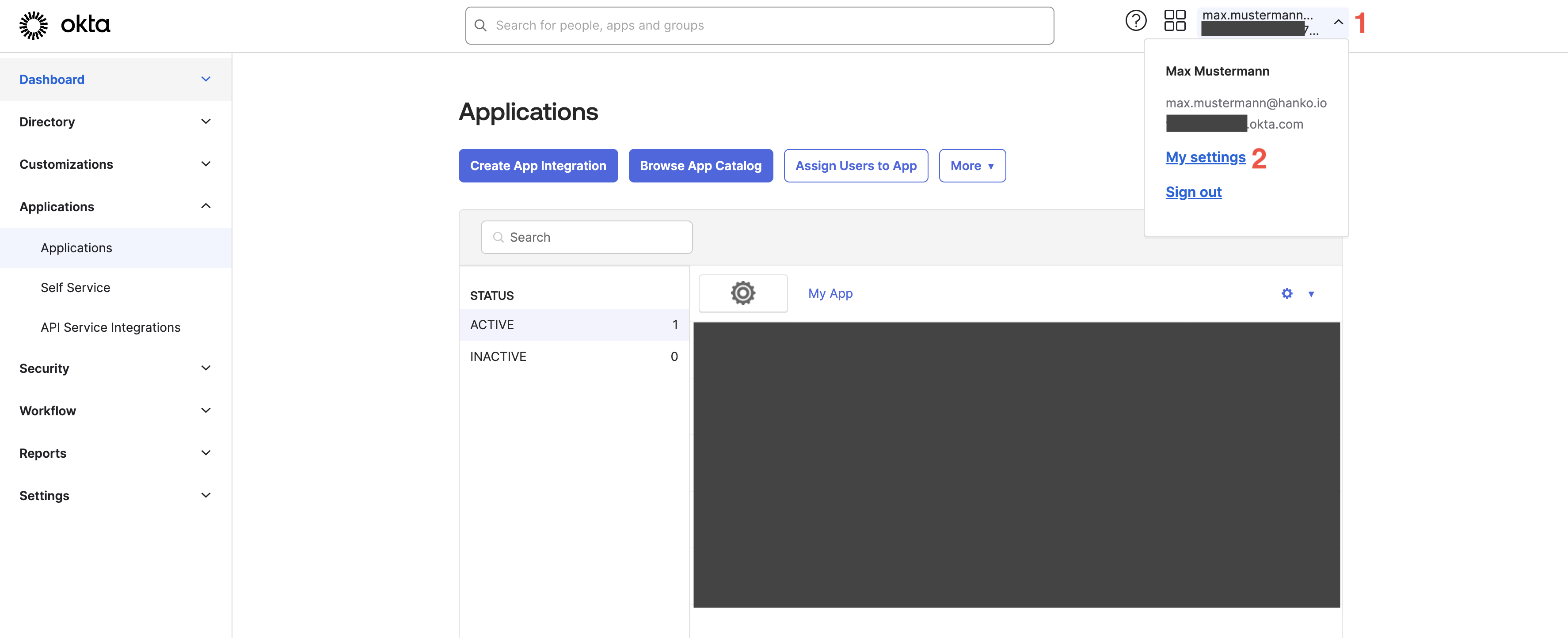
1. On the top right click the user dropdown.
2. Click `My settings`.
## Testing your integration
To test your integration via [IdP-initiated](/guides/enterprise-sso/introduction#identity-provider-initiated-sso)
flow:
1. On the top right click the user dropdown.
2. Click `My settings`.
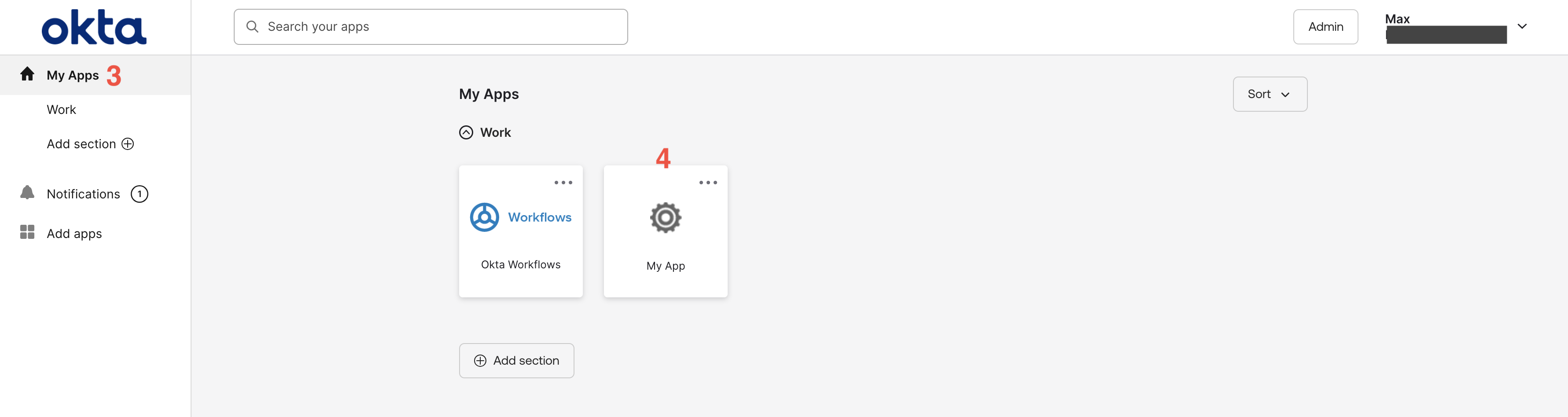
 3. In your end-user profile select `My Apps` in the left sidebar.
4. Find your app and click its icon.
3. In your end-user profile select `My Apps` in the left sidebar.
4. Find your app and click its icon.